
To view this content in our official product documentation, click here.
Introduction
The installs page shows all existing installations of a blueprint, with options to forcibly promote/demote a specific version, or the active version, to selected installations.
You can also drill down to the details of a bulk installation to check the status of associated updates (either during or after completion), and you can even cancel pending updates.
Accessing the installs page
{% stepper %} {% step %} Log in to your own company profile
Log in to the dashboard and (if you're managing multiple company profiles) ensure that you've switched to your own profile. {% endstep %}
{% step %} Access private blueprints
Select marketplace from the left-hand navigation menu, then select blueprints and private tabs. Here you will see any blueprints that have been built by users associated with your company profile. {% endstep %}
{% step %} Select the required blueprint
Click the blueprint tile that you want to manage. For example:

The blueprint manifest is displayed. For example:

{% endstep %}
{% step %} Select view installs
Click the ellipsis icon at the top of the page:

Then select the view installs option:

{% endstep %} {% endstepper %}
Understanding the installs page
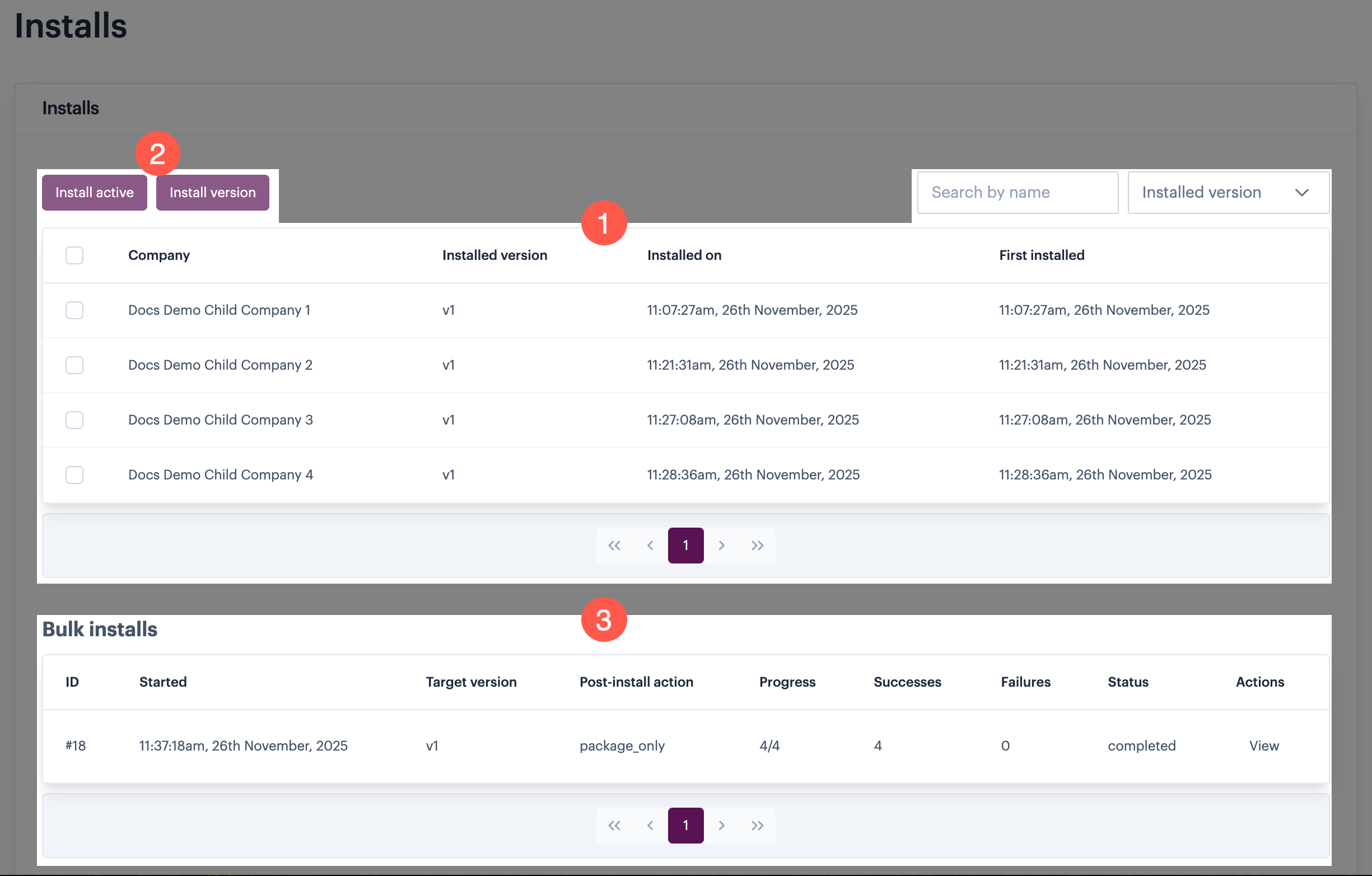
The installs page has three key areas: (1) installs panel; (2) buttons for update actions; bulk installs panel (3):
The installs panel
The installs panel lists all 'child' company profiles where any version of this blueprint is installed. For example:
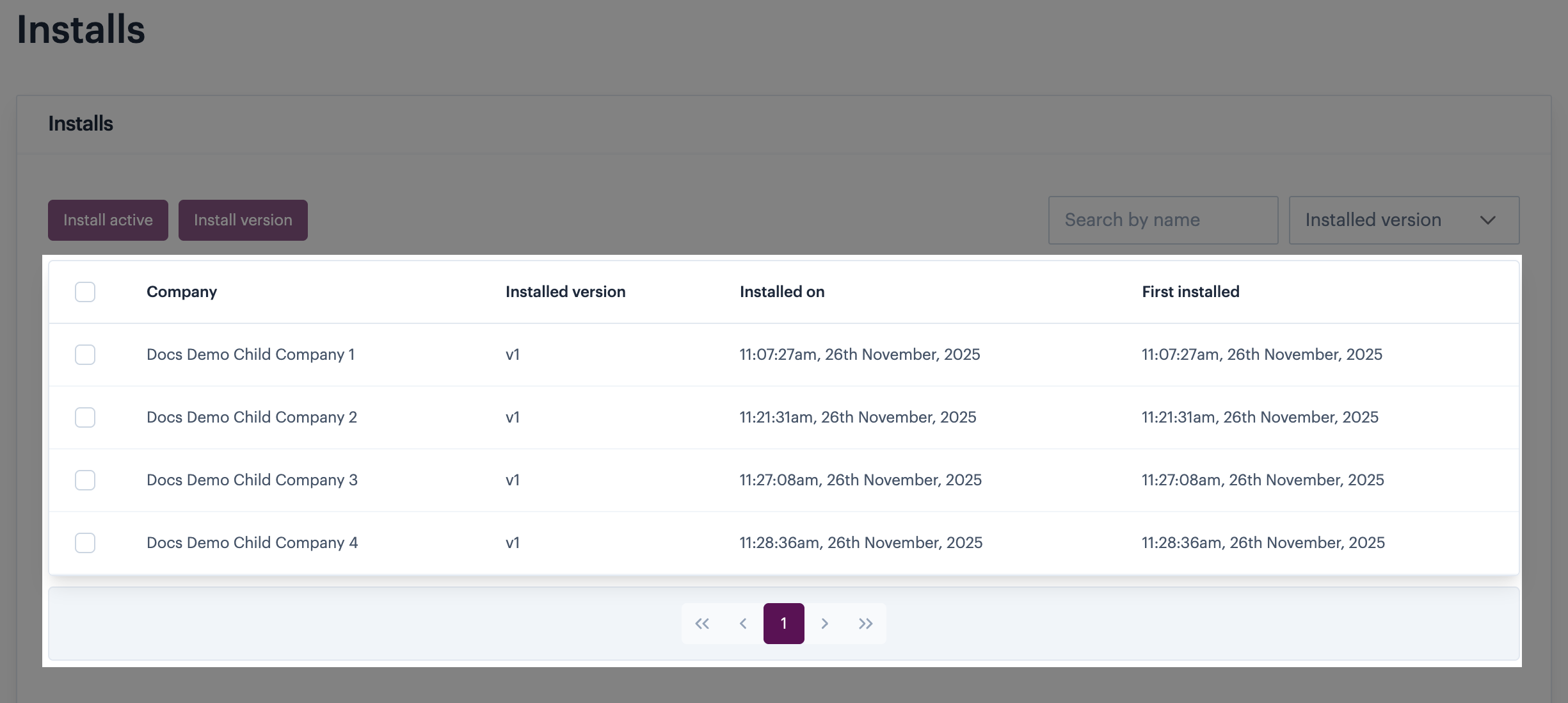
If the blueprint is installed for your own company profile, this is also shown.
The following details are displayed for each installation:
| Column | Summary |
|---|---|
| Company | The name of the company where this blueprint is installed. |
| Installed version | The currently installed version. |
| Installed on | The date and time the currently installed version was installed. |
| First installed | The date and time this blueprint was first installed. |
Search & filter options
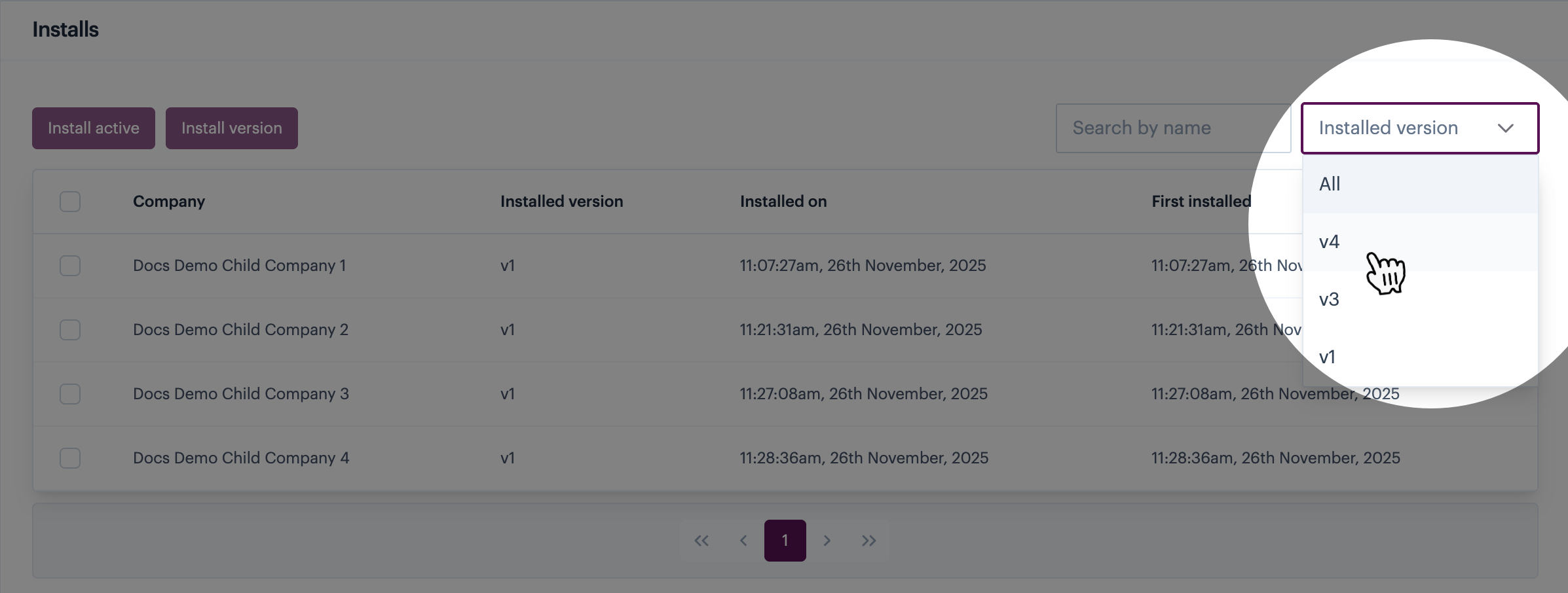
Over time, your list of installations will grow. If necessary, you can use the search field to find the installation for a particular company name (or partial company name). You can also filter the list of installations by a selected version.
{% columns %} {% column %} Search

{% endcolumn %}
{% column %} Filter
{% endcolumn %} {% endcolumns %}
Update actions
When at least one installation is selected, buttons above the installs list become active. For example:
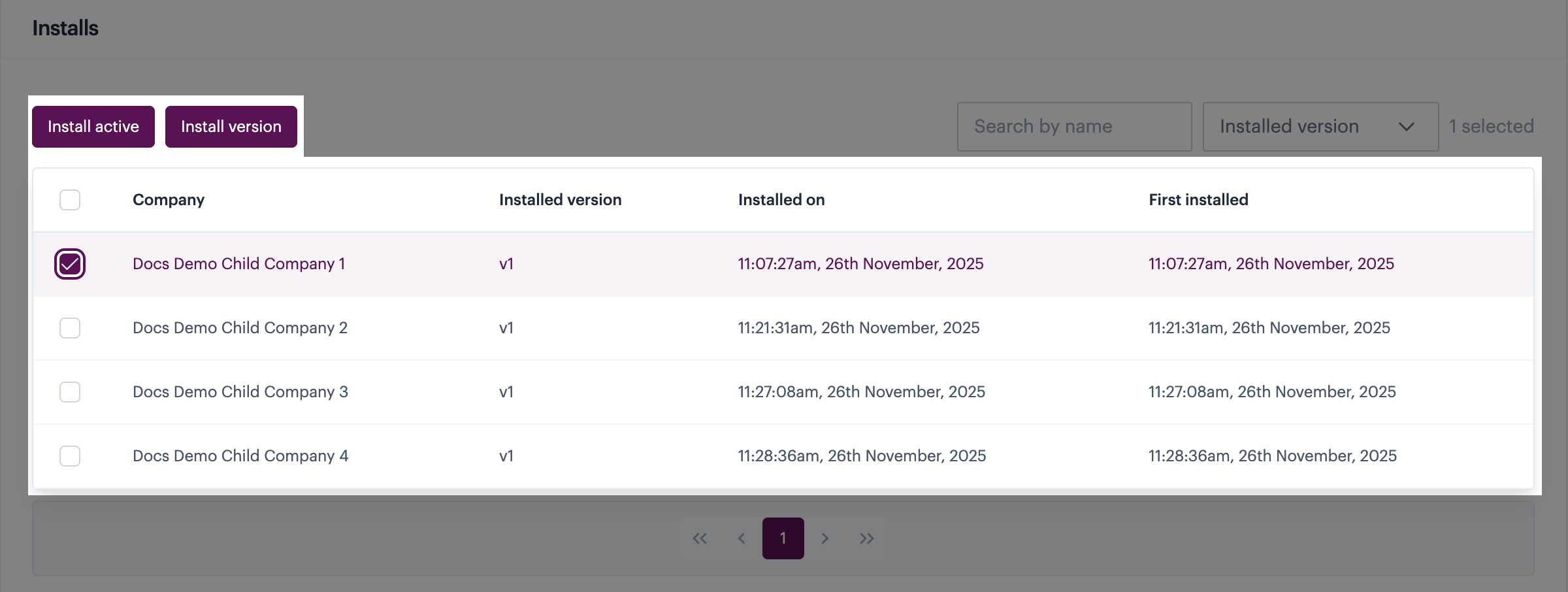
You can choose to:
- Promote the current active version of this blueprint to the selected installation.
- Promote/demote the selected installation to a specific version
Please refer to Bulk blueprint updates (force) for further information on these actions.
The bulk installs panel
The bulk installs panel lists all 'bulk' updates that have taken place - i.e. all updates triggered using update actions on this page. For example:
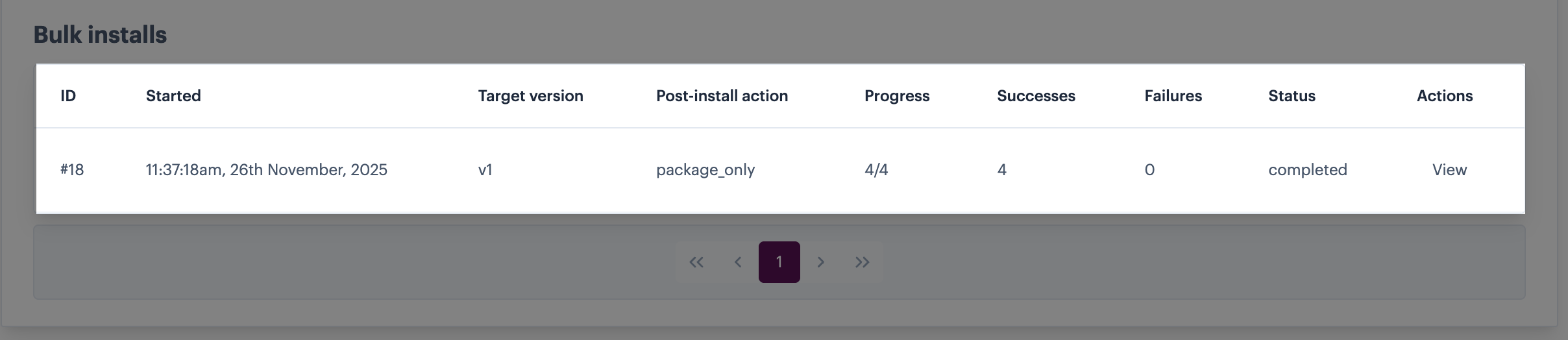
Bearing in mind that a single bulk update can include updates to multiple installations, the following details are displayed for each bulk update:
| Column | Summary |
|---|---|
| ID | The unique identifier associated with this bulk update. |
| Started | When a bulk update is triggered, the job is queued for processing. The started time is the time that the job is queued. |
| Target version | The version to be applied in this bulk update. |
| Post-install action | The action selected when the bulk update was triggered. Will be set to: none, package_only, or package_and_redeploy. |
| Progress | The number of selected installations updated in relation to the total number selected for the bulk update. |
| Successes | The number of installations updated successfully from this bulk update. |
| Failures | The number of installations that failed during this bulk update. |
| Status | The current status of the bulk update. Will be set to running, completed, or failed. |
| Actions | Click the view option for installation details, including target company profiles and the status for each one. For more information, please refer to the Installation details section below. |
Installation details
The bulk installs panel shows one entry for each bulk update however, you can use the view action to drill down for detailed information for each entry:

From here, the batch items page shows general details for the update, followed by a breakdown of all company profiles included in this update (with the option to drill down for more information). For example:
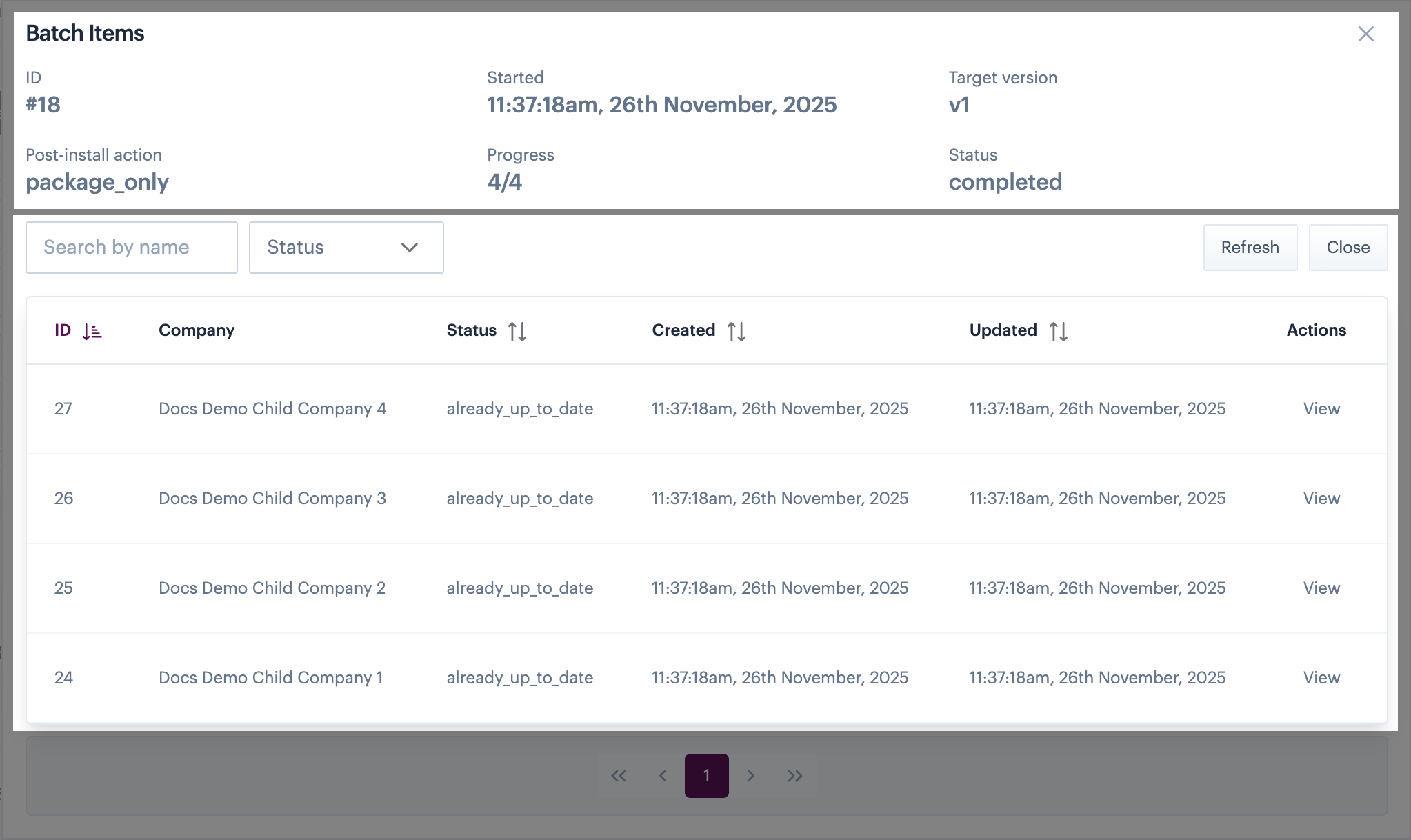
This information is especially useful if you need to investigate why a bulk update (or part of one) has failed.
If updates are pending, a `cancel` option (not shown in this screenshot) is available. For more information, see Cancelling pending updates.
Batch items - general details
General details for the associated bulk update are shown in the top panel - for example:
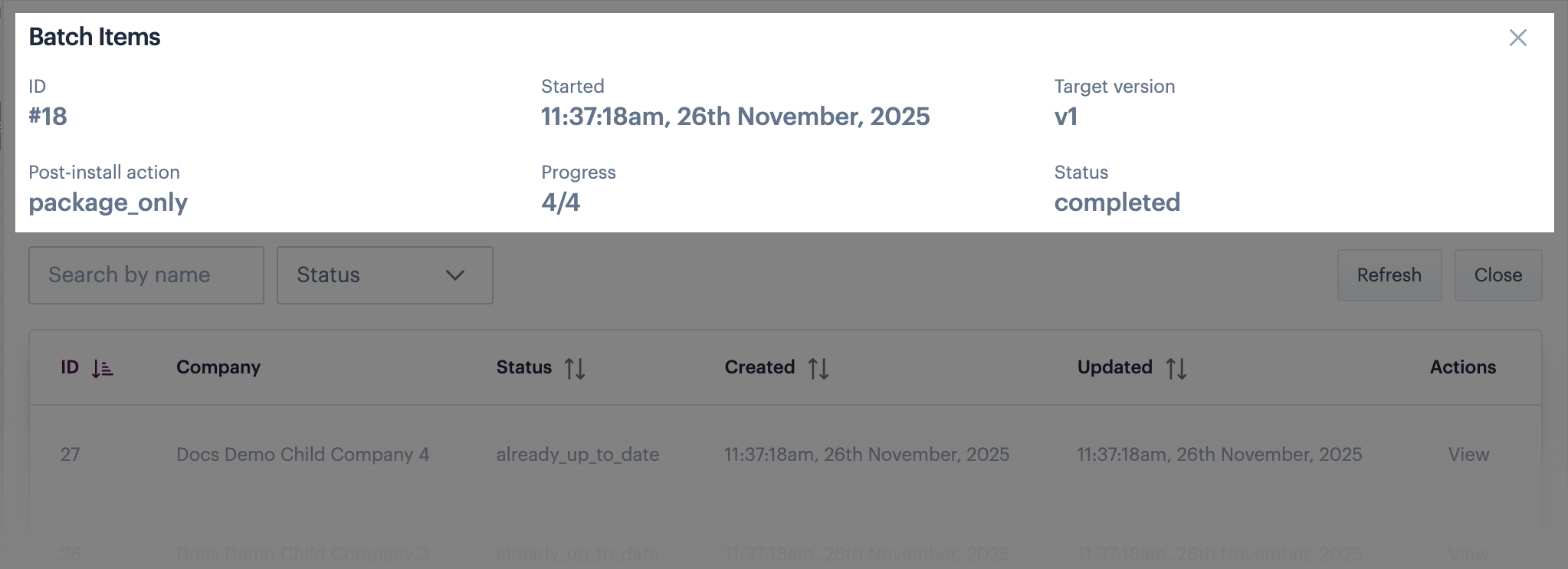
Available details are summarised below:
| Item | Summary |
|---|---|
| ID | The unique ID for the associated bulk update. |
| Started | When a bulk update is triggered, the job is queued for processing. The started time is the time that the job is queued. |
| Target version | The version to be applied in this bulk update. |
| Post-install action | The action selected when the bulk update was triggered. Will be set to: none, package_only, or package_and_redeploy. |
| Progress | Each installation (i.e. company) selected for a bulk update is an update in itself - so if you selected 4 installations to update, there will be 4 updates to complete. You'll see the number completed in the context of the total, here. |
| Status | The current status of the bulk update. Will be set to running, completed, or failed. |
Batch items - update breakdown
In the lower panel, you'll find one entry for each installation/company profile selected for inclusion in the bulk update - for example:
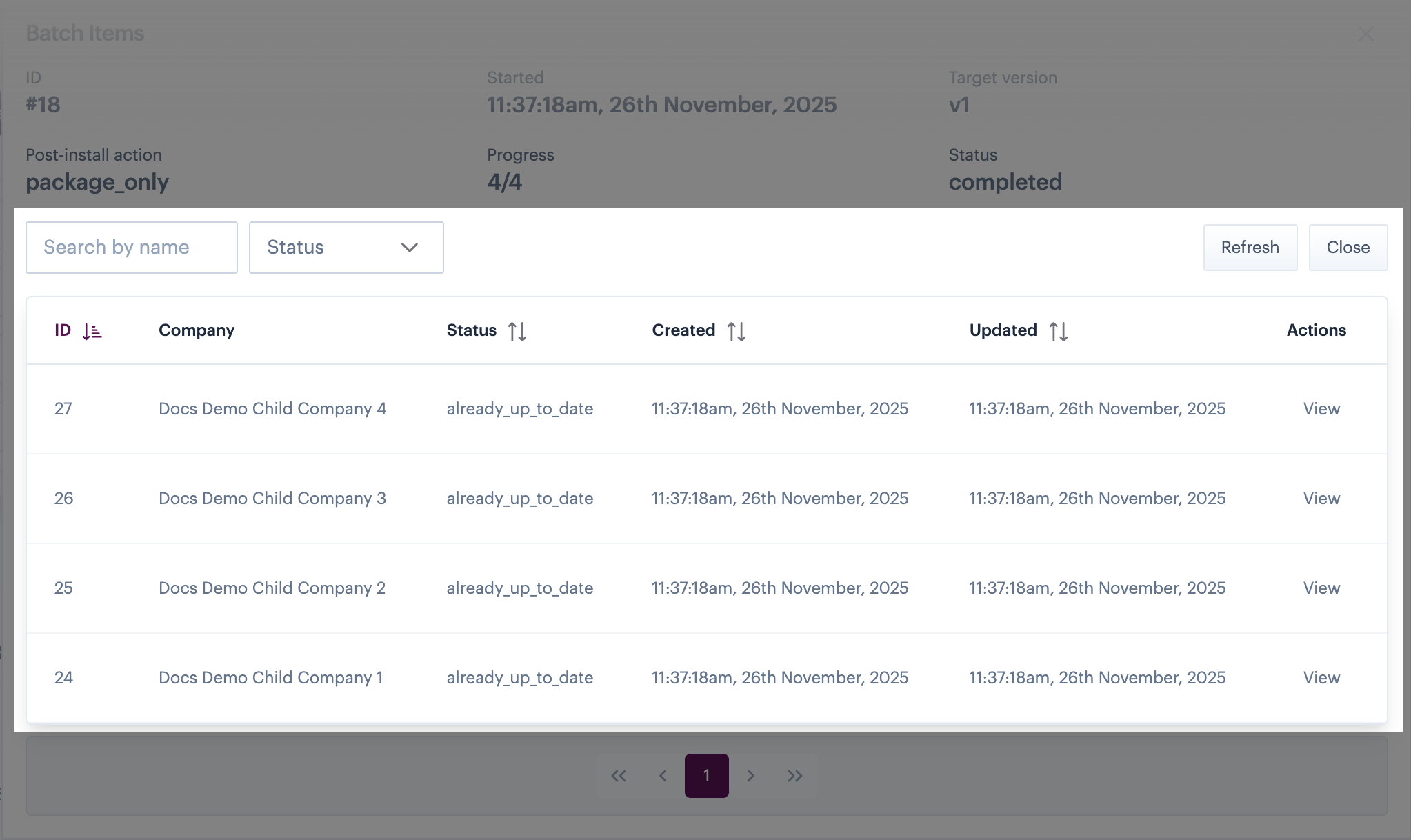
Available options at the top of the breakdown pane are summarised below:
| Item | Summary |
|---|---|
| Search by name | Search for a specific installation/company by name or partial name (the search is not case sensitive). |
| Status filter | Use the dropdown list to filter the list of updates by current status. |
| Refresh | If a bulk update is running, information in this panel may change. Use the refresh button to update this page (including the general details pane). |
| Close | Close this page and exit back to the main installs page. |
Available details for each installation/company are summarised below:
| Item | Summary |
|---|---|
| ID | The unique ID for the specific update. |
| Company | The company profile selected for update. |
| Status |
When a bulk update runs, each specific update has its own status. This will be set to one of the following values:
|
| Created | The date and time that the bulk update was triggered. |
| Updated | The last time this specific installation was updated. |
| Actions |
Click the
Errors are unlikely, but if they do occur, the most likely cause is a configuration anomaly. |

If updates are pending, a `cancel` option (not shown in this screenshot) is available. For more information, see Cancelling pending updates.
Cancelling pending updates
If you view details for a bulk install and the update is still running, you can choose to cancel any pending installations using the cancel button. For example:
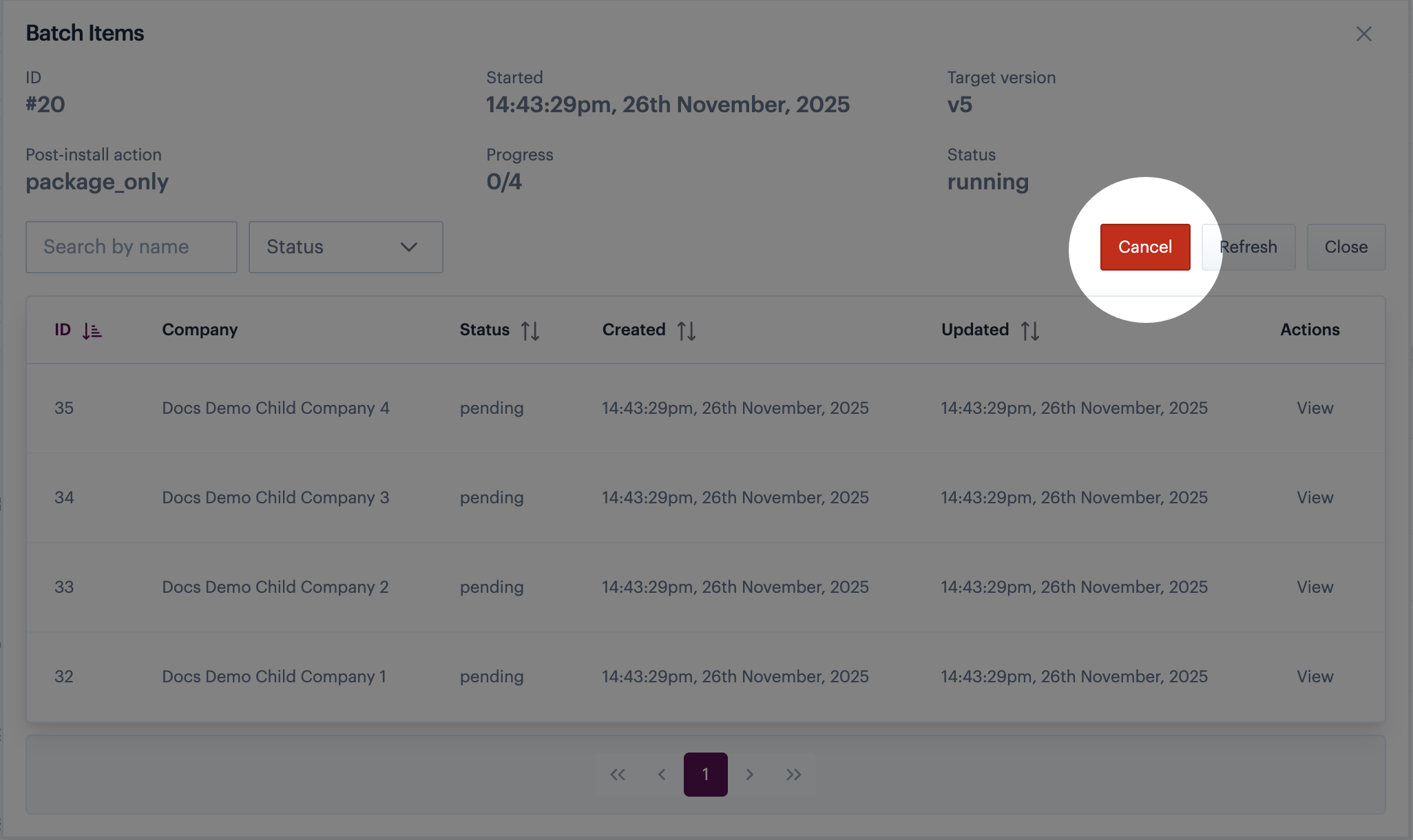
Any pending jobs will be cancelled. Any jobs that are currently set to a processing status will not be cancelled.
Comments
0 comments
Please sign in to leave a comment.