
To view this content in our official product documentation, click here.
Introduction
The active version of a blueprint is the version to be used whenever someone chooses to install this blueprint from your private marketplace. By default, the initial version of a blueprint becomes active when a blueprint is created. For example:
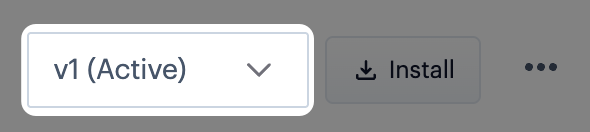
Each time you publish an update for an existing blueprint, a new version is generated. At this point, you can choose which version should be active.
If you have updated an existing blueprint, we recommend promoting it to a test company/environment before it is set to `active`. Please refer to Updating a private blueprint for a suggested update workflow.
Need to know
When an updated version is set to active, two things happen:
- This becomes the version used when someone chooses to install this blueprint from your private marketplace.
- An
update availableindicator is added to this blueprint in the private marketplace for any 'child' company profiles where it's installed. You can apply these updates in a bulk operation or individually.
The steps
{% stepper %} {% step %} Log in to your own company profile
Log in to the dashboard and (if you're managing multiple company profiles) ensure that you've switched to your own profile. {% endstep %}
{% step %} Access private blueprints
Select marketplace from the left-hand navigation menu, then select blueprints and private tabs. Here you will see any blueprints that have been built by users associated with your company profile.
{% endstep %}
{% step %} Access the manifest for the required blueprint
Click the blueprint tile that you want to manage. For example:

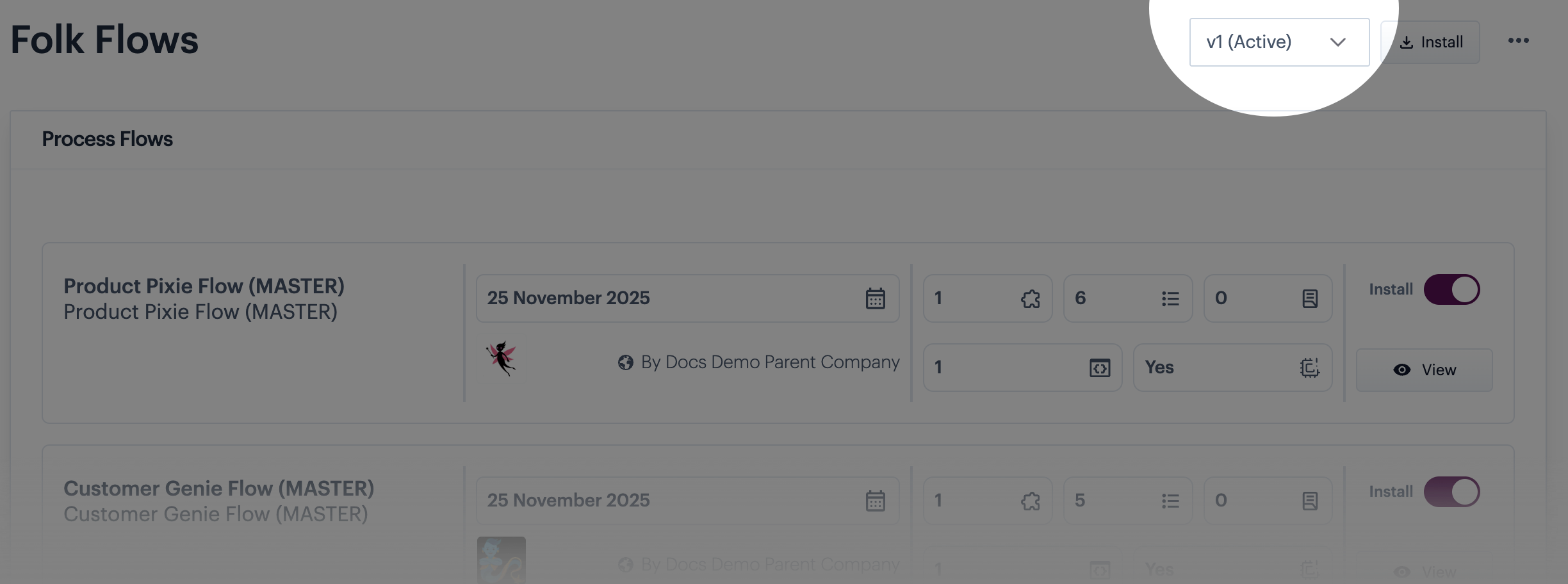
The blueprint manifest is displayed with the currently active version is displayed by default - for example:
{% step %} Switch to the version you want to make active
Click in the version field and select the version that you want to make active. For example:

{% step %} Select the set active option
Click the ellipsis icon at the top of the page:

Then select the set active option:

The selected version becomes active immediately.
{% endstep %}
{% endstepper %}
Comments
0 comments
Please sign in to leave a comment.