
To view this content in our official product documentation, click here.
Introduction
Most work with process flows starts from your manage process flows page:

Available information and options are summarised in the sections below.
Accessing your process flow list
To access the manage your flows page, follow the steps below.
{% stepper %} {% step %} Log in to the Patchworks
If you haven't done so already, log in to the Patchworks dashboard. {% endstep %}
{% step %} Access process flows
Select process flows ➤ process flows from the left-hand navigation menu:

Understanding the process flows page
The manage your flows page displays all process flows created for your company profile, with associated information and options:
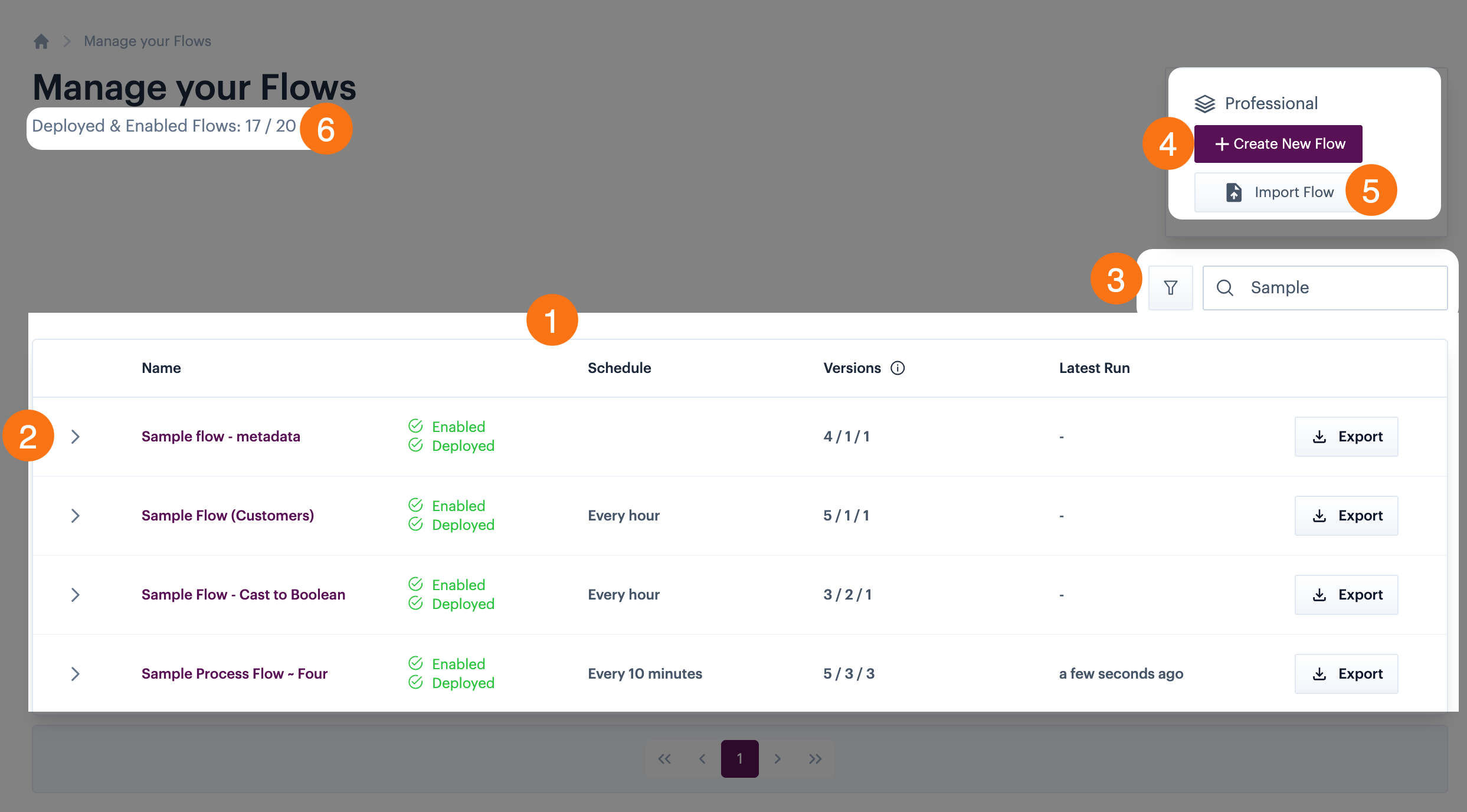
Key details are summarised below:
- Process flow list
- Version details
- Search & filter options
- Create new flow
- Import existing flow
- Deployed flows count
The process flow list
The process flow list displays one entry for each process flow, with summary information shown in columns. These columns are summarised below.
The information shown may vary, depending on whether the virtual environments feature is enabled for your company profile. Where applicable, variations are noted.
| Column | Summary (virtual environments disabled) | Variations if virtual environments enabled |
|---|---|---|
| Name | The name of the process flow is displayed as a hyperlink. Click this link to open the process flow on the canvas
|
- |
| Status | Shows the enabled and deployed status of the process flow. | - |
| Schedule | Shows trigger shape summary information for the current deployed version. If no deployed version exists, details for the current draft version are shown. |
Shows trigger shape summary information for the latest deployed version. If no deployed version exists, details for the current draft version are shown. |
| Versions | Shows the total number of versions for the process flow / the number of versions that are deployed. | Shows the total number of versions for the process flow / the number of versions that are deployed / the number of versions that are enabled. |
| Latest run | The date/time that the process flow was last run (shows the time only for the current day). | - |
Search & filter options
As your list of process flows increases, it may be useful to find particular flows (or groups of flows) using filters and/or search options, at the top of the list:

Filtering the process flow list
Click the filter icon to select filters based on flow status and/or labels:
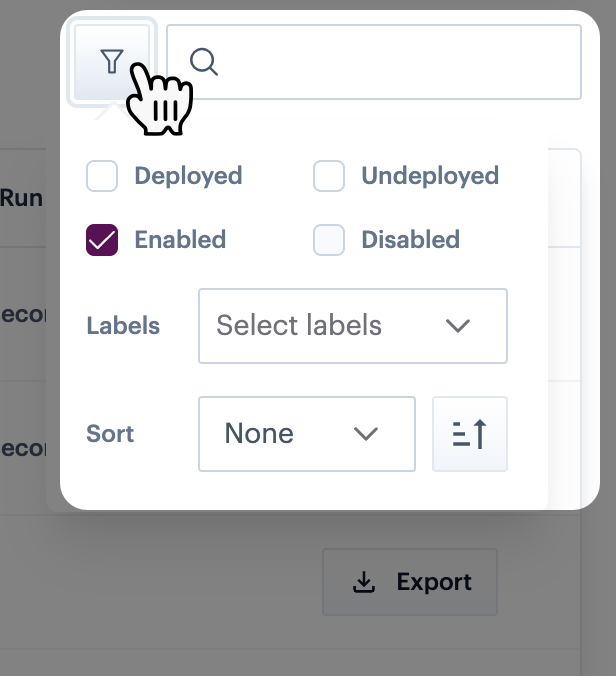
Available filters are summarised below:
Status filters behave slightly differently if the virtual environments feature is enabled for your company profile, since a single process flow can have multiple versions with different statuses. For more information, please refer to Understanding flow versioning for virtual environments.
| Filter | Summary (virtual environments disabled) | Variations if virtual environments enabled |
|---|---|---|
| Deployed | Returns process flows that are currently deployed. |
Returns process flows with at least one deployed version. |
| Undeployed | Returns process flows that are not currently deployed. |
Returns process flows where there is no deployed version. |
| Enabled | Returns process flows that are currently enabled. |
Returns process flows with at least one enabled version. |
| Disabled | Returns process flows that are currently disabled. |
Returns process flows where there is no enabled version. |
| Labels | Returns process flows associated with the selected label(s). | - |
| Sort | Select a heading for sorting, then choose ascending/descending. | - |
Searching the process flow list
You can use the search field to search for process flows by name - just enter a string value to be matched anywhere in the process flow name.
For example, searching for 3 would return flows named Sample Process Flow 3 and also Sample Process Flow 13.
Filters and search work together; if a filter is applied and you enter a search term, the search is performed on filtered results.
Process flow version details
Each process flow entry is associated with an arrow, for example:
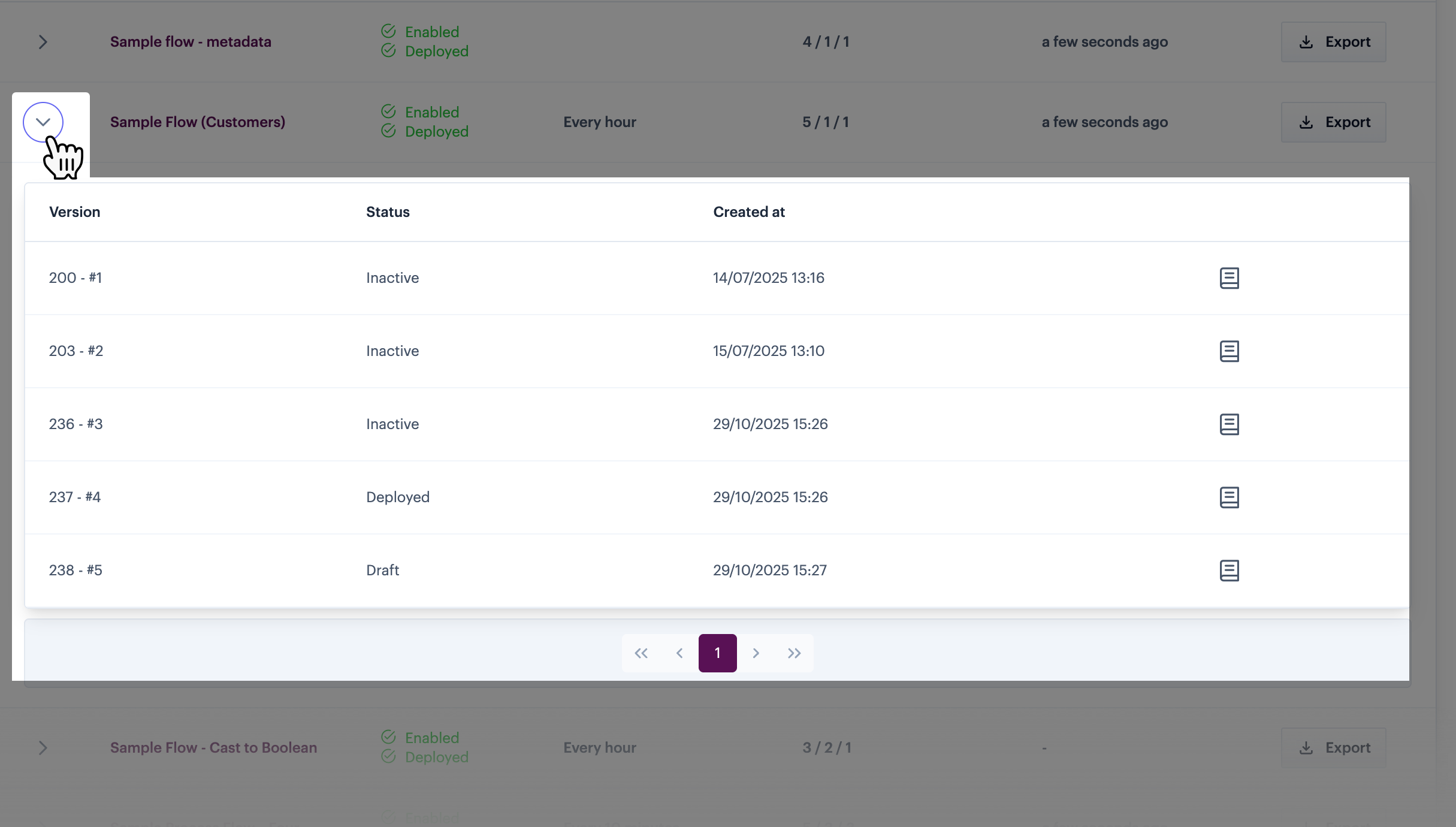
Click this arrow to view version details for the associated process flow. The information shown varies, depending on whether virtual environments are in use.
Virtual environments not in use
If the virtual environments feature is NOT enabled for your company profile, each version of the flow is listed, for example:

Here, you can see:
| Column | Summary |
|---|---|
| Version | The version number and unique id. |
| Status | The current status of this version. Without virtual environments, a process flow will only ever have one deployed version, one draft, and (where applicable) multiple inactive versions. For more information, please refer to Process flow versioning. |
| Deployed by | If the version status is deployed, the date and time of the deployment is shown, together with the Patchworks username of the person who completed the deployment. |
| Created at | The date and time that the version was created. |
Virtual environments in use
If the virtual environments feature IS enabled for your company profile, each version of the flow is listed - for example:
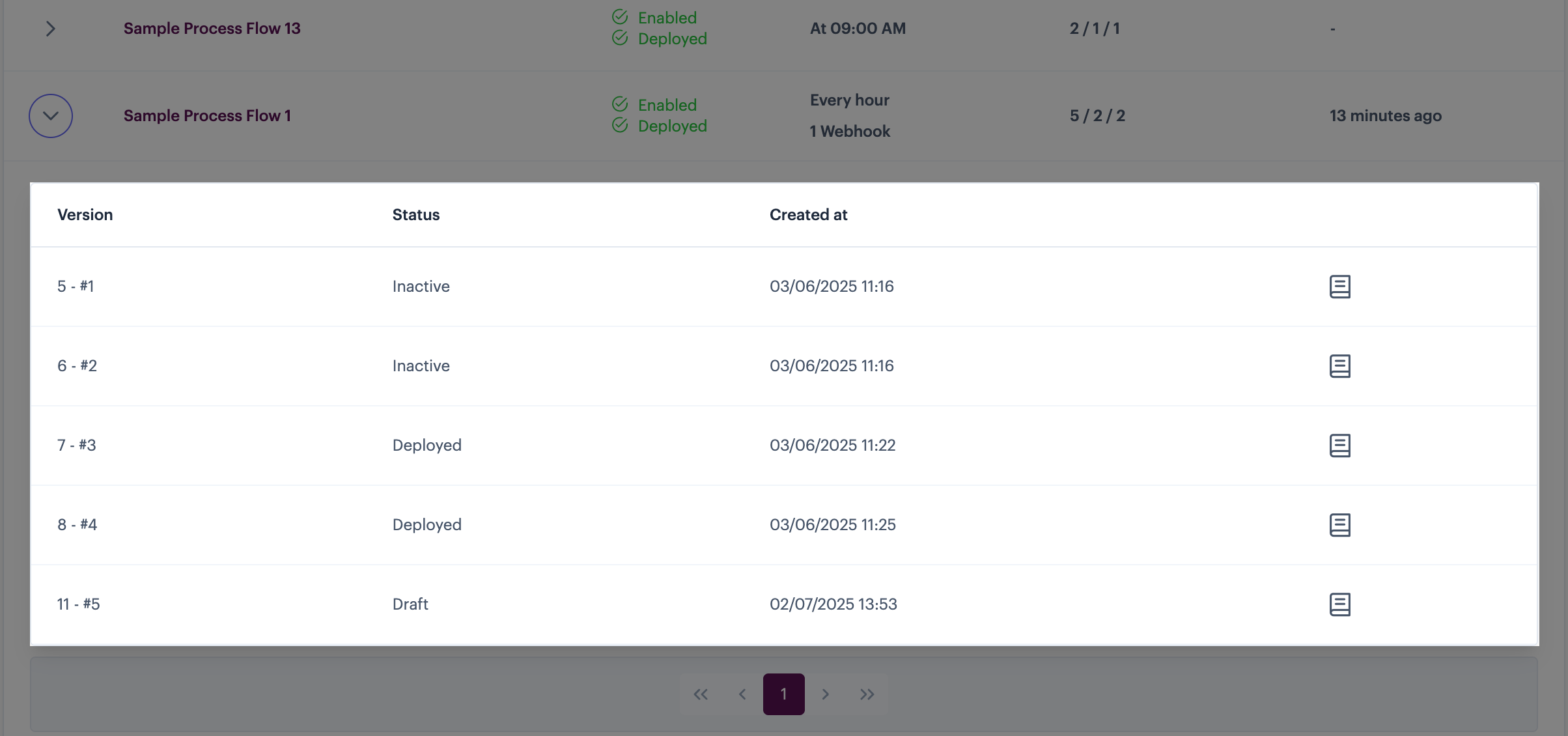
Here, you can see:
| Column | Summary |
|---|---|
| Version | The version number and unique id. |
| Status | The current status of this version. With virtual environments, a process flow might have multiple deployed versions, one draft, and (where applicable) multiple inactive versions. For more information, please refer to Understanding flow versioning for virtual environments. |
| Created at | The date and time that the version was created. |
| Deployment details icon | Click the deployment details icon to view deployment information for the selected version. If the version has been deployed at any time, you can see where (i.e. to which virtual environment) the deployment was made - for example:
|
Create new flow
Use the create new flow button to start building a new process flow:

Deployed flows count
Each core subscription tier is associated with an allowed number of deployed & enabled process flows (i.e. active flows):

Comments
0 comments
Please sign in to leave a comment.