
To view this content in our official product documentation, click here.
Introduction
Flow variables are added and managed for any process flow via process flow settings. Once variables are defined, they can be referenced throughout the system - for example, in scripts, or as variable values.
Adding flow variables
Step 1\ Access the required process flow.
Step 2\ Select the 'settings' icon from the actions bar:

Step 3\ Scroll down the settings drawer to the variables section, then click the add new flow variable button:

Step 4\ Enter a name for this variable - the name you enter here should be specified whenever you are referencing this variable:
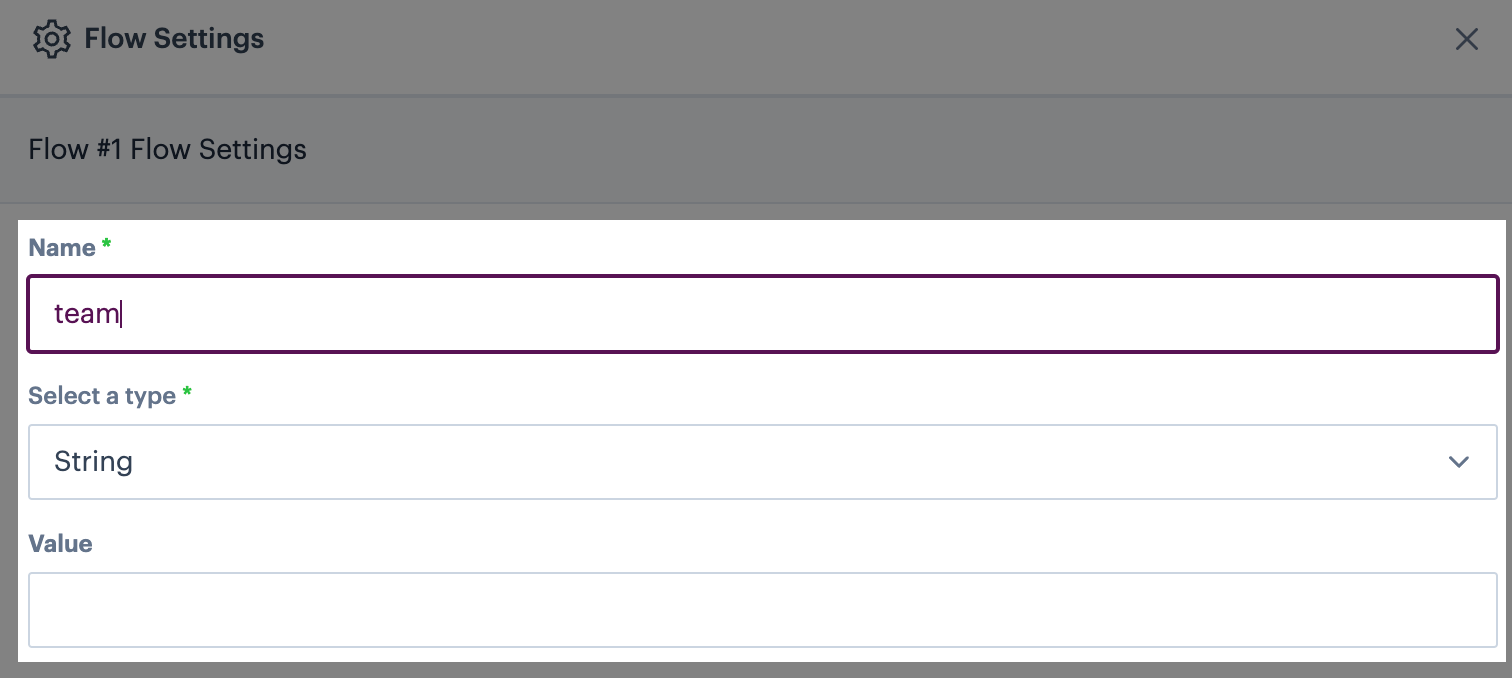
Step 5\ Click the select a type field and choose the required type:
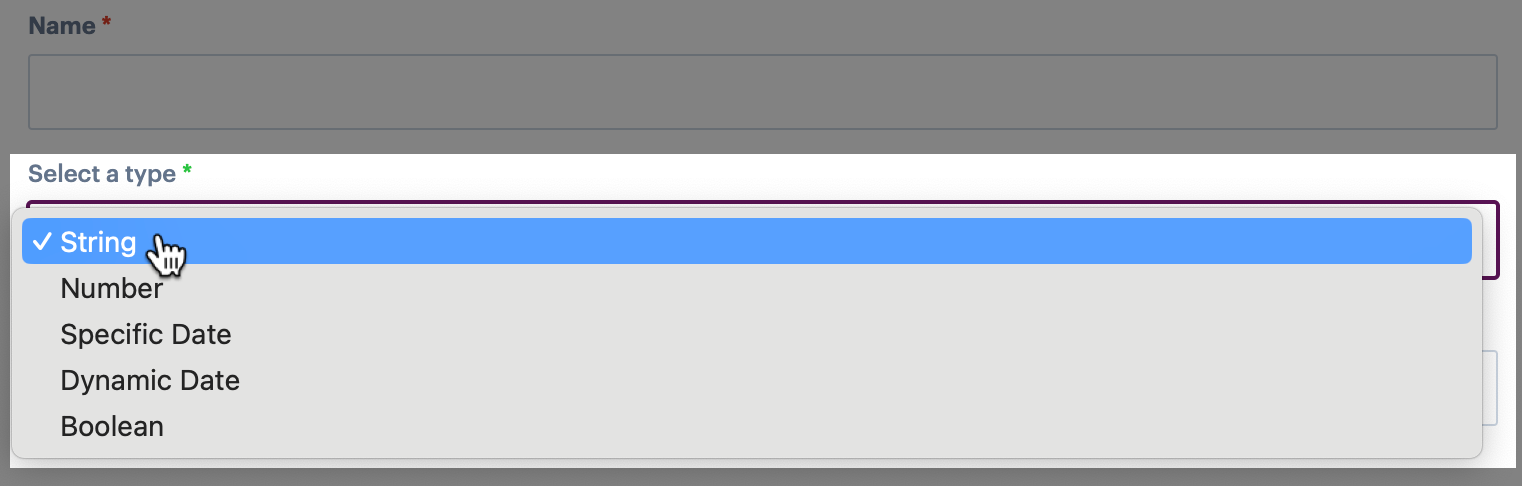
The following options are available:
| Variable type | Variable is defined and passed as... |
|---|---|
| String | A string value. |
| Number | A numeric value. |
| Specific date | A selected date - choose the required date/time from a date picker. |
| Dynamic date | A +/- number of seconds, minutes, hours, days, months, years to be matched relative to the current date. You can also specify a time zone and the required date format. |
| Boolean | A true/false value. |
Step 6\ Enter the required value for this variable and save settings:

When a variable is marked as `secret`, it will never be displayed on this page. However, it may be shown in run logs and (if used as a dynamic variable) in cache keys.
Step 7\ If you want to hide this value from being displayed after the variable is saved, toggle ON the is this variable a secret? option:
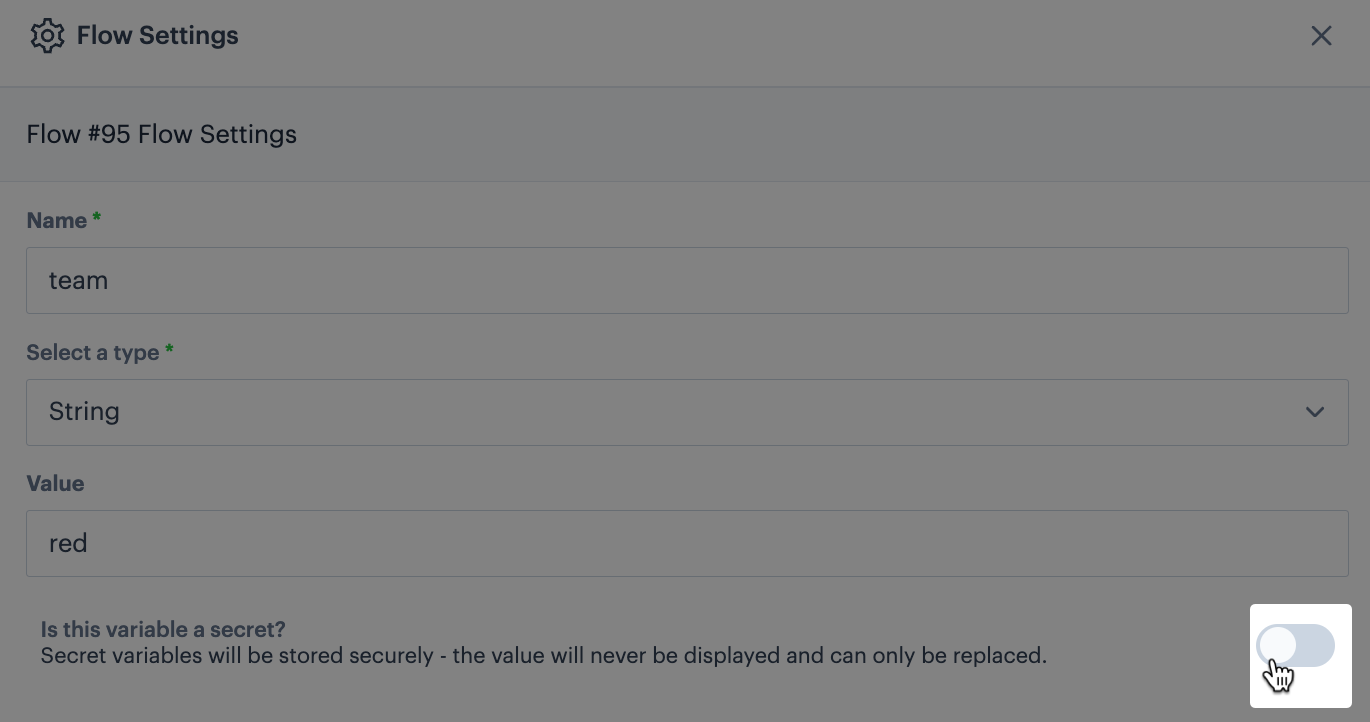
Step 8\ Save settings.
Updating flow variables
Step 1\ Access settings for the required process flow, as detailed above.
Step 2\ Click the 'edit' icon associated with the variable you want to change:

Step 3\ Now you can either update existing settings and click the update button, or click the delete button to remove this variable:

Comments
0 comments
Please sign in to leave a comment.