
To view this content in our official product documentation, click here.
Introduction
When adding a new event connector, you step through a series of wizard-type pages to add general settings, authentication credentials, and required queues/topics.
Need to know
- New event connectors are available for selection as brokers in process flow trigger shapes as soon as they are saved successfully.
- Event connector triggers only become active when the process flow is deployed and enabled.
- ALL messages published to selected queues/topics are passed through to the process flow.
The steps
Step 1\ Log into the Patchworks dashboard, then select process flows > event connectors from the left-hand navigation menu.
Step 2\ Click the add new event connector button:

Step 3\ You're prompted to enter general settings for this connector:
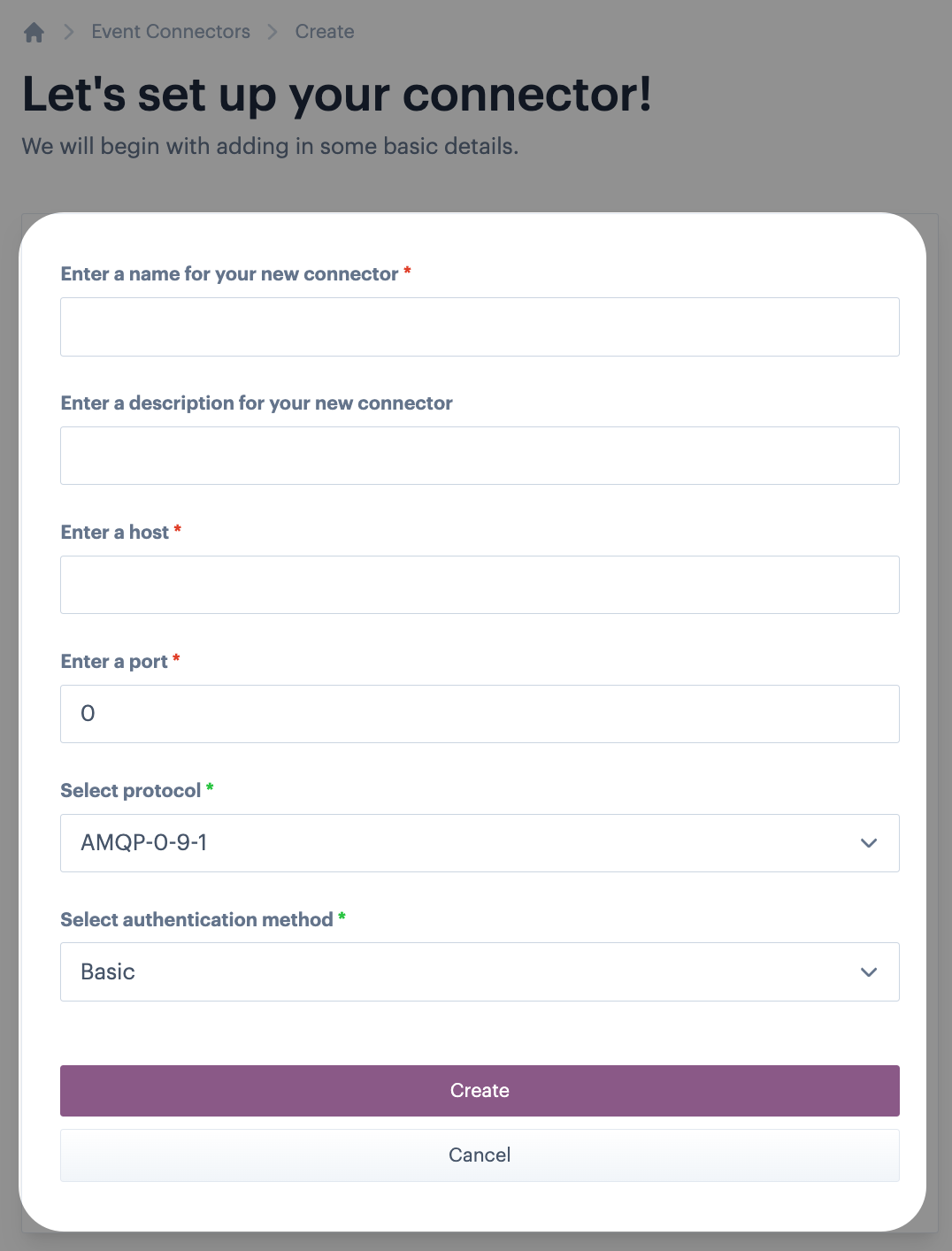
Use the table below as a guide:
| Setting | Summary |
|---|---|
| Name | Enter a name for the event connector, as it will identified throughout Patchworks. |
| Description | Enter a description for the event connector to provide a little more detail about its purpose. |
| Host | Enter the the address of the machine where your messaging broker (e.g. RabbitMQ) is running - typically this is an IP address or a domain name. |
| Port | Enter the network port where RabbitMQ is listening for connections. RabbitMQ uses the AMQP (Advanced Message Queuing Protocol) for communication which, by default, listens on port 5672 for non-TLS connections and on port 5671 for TLS connections. |
| Protocol | Select the appropriate protocol for your messaging broker. |
| Authentication method | Currently, basic auth is supported. |
Step 4\ Click the create button.
Step 5\ Enter your authentication credentials for the message broker - in this case, username and password:

Step 6\ Click the update button.
Step 7\ Now you can select or add which message queue/topic to associate with this event connector:
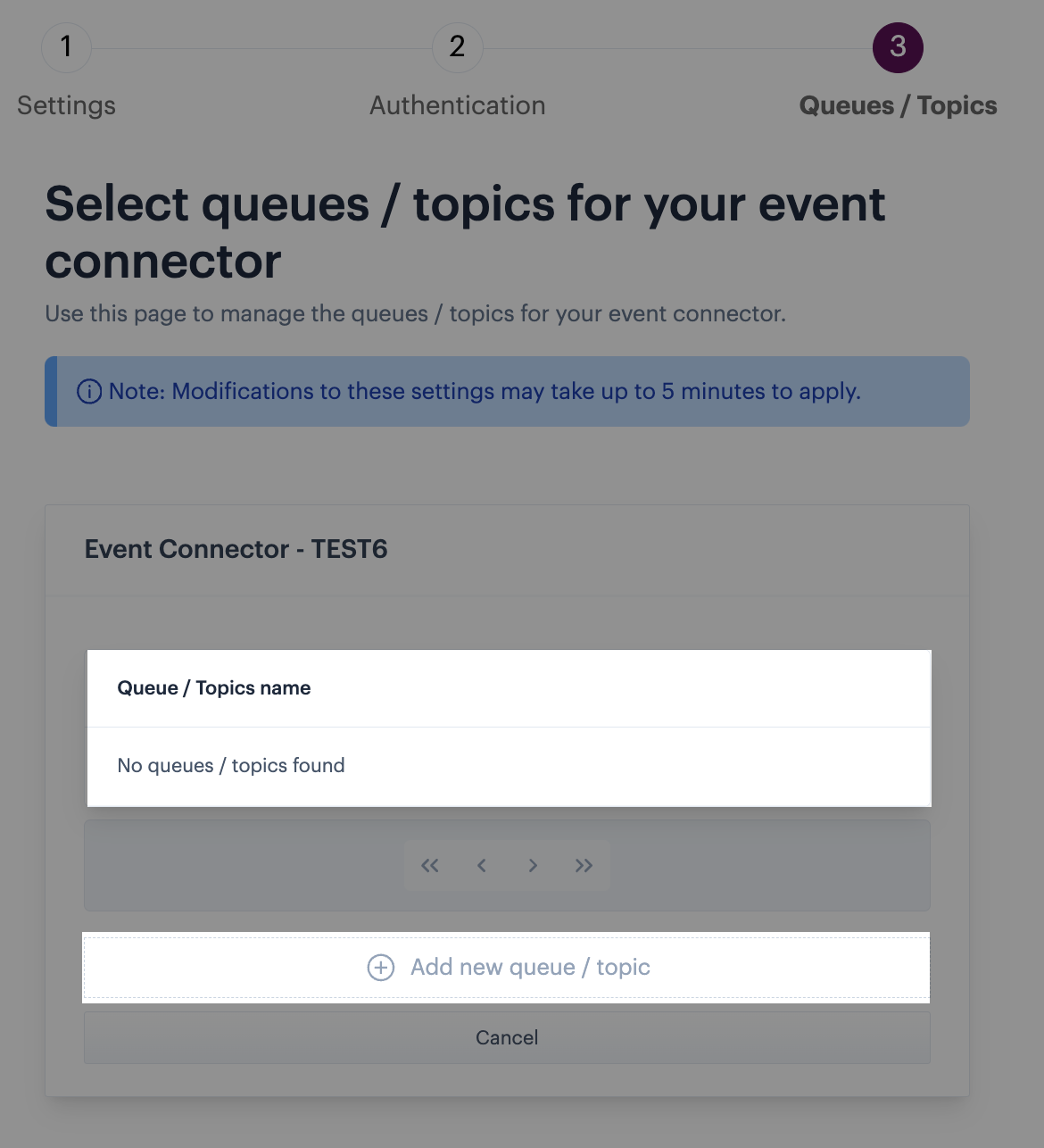
Any existing queues are listed for selection, or you can add new queues/topics.
When you add a new queue/topic here, it is added to your message broker. You can add as many as you need - any queues/topics that you add will be available for selection when this event connector is selected as the **broker** in a process flow trigger shape.
Step 8\ Having added all required queues/topics, the event connector is ready to use in process flows.
Comments
0 comments
Please sign in to leave a comment.