
To view this content in our official product documentation, click here.
Introduction
All versions associated with a process flow can be accessed via the versions panel in process flow settings. From here, you can view summary details for each version and, if required, switch to a given version on the canvas.
The steps
{% stepper %} {% step %} Log in to the Patchworks
If you haven't done so already, log in to the Patchworks dashboard. {% endstep %}
{% step %} Access process flows
Select process flows ➤ process flows from the left-hand navigation menu:

{% step %} Access process flow settings
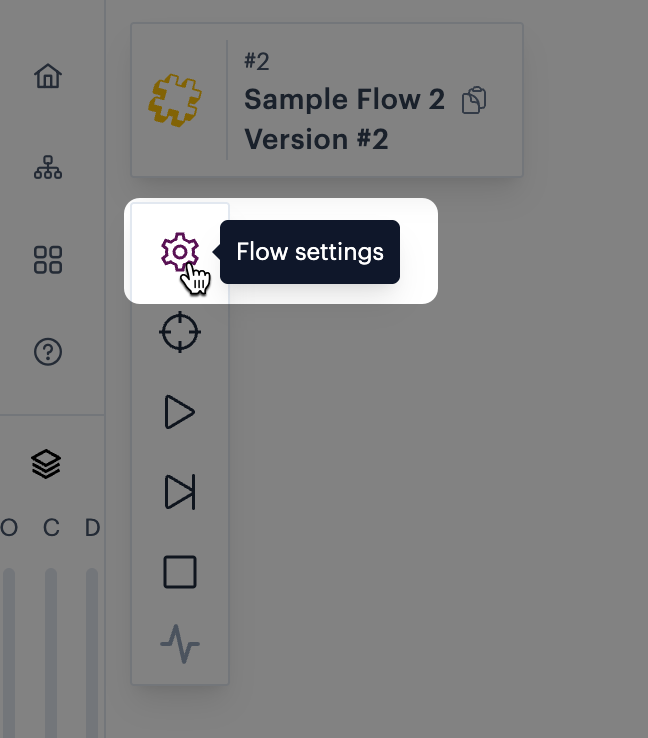
Select flow settings from the actions bar - for example:
{% step %} Scroll to versions
Scroll down to the versions panel, where all existing versions of the process flow are listed:
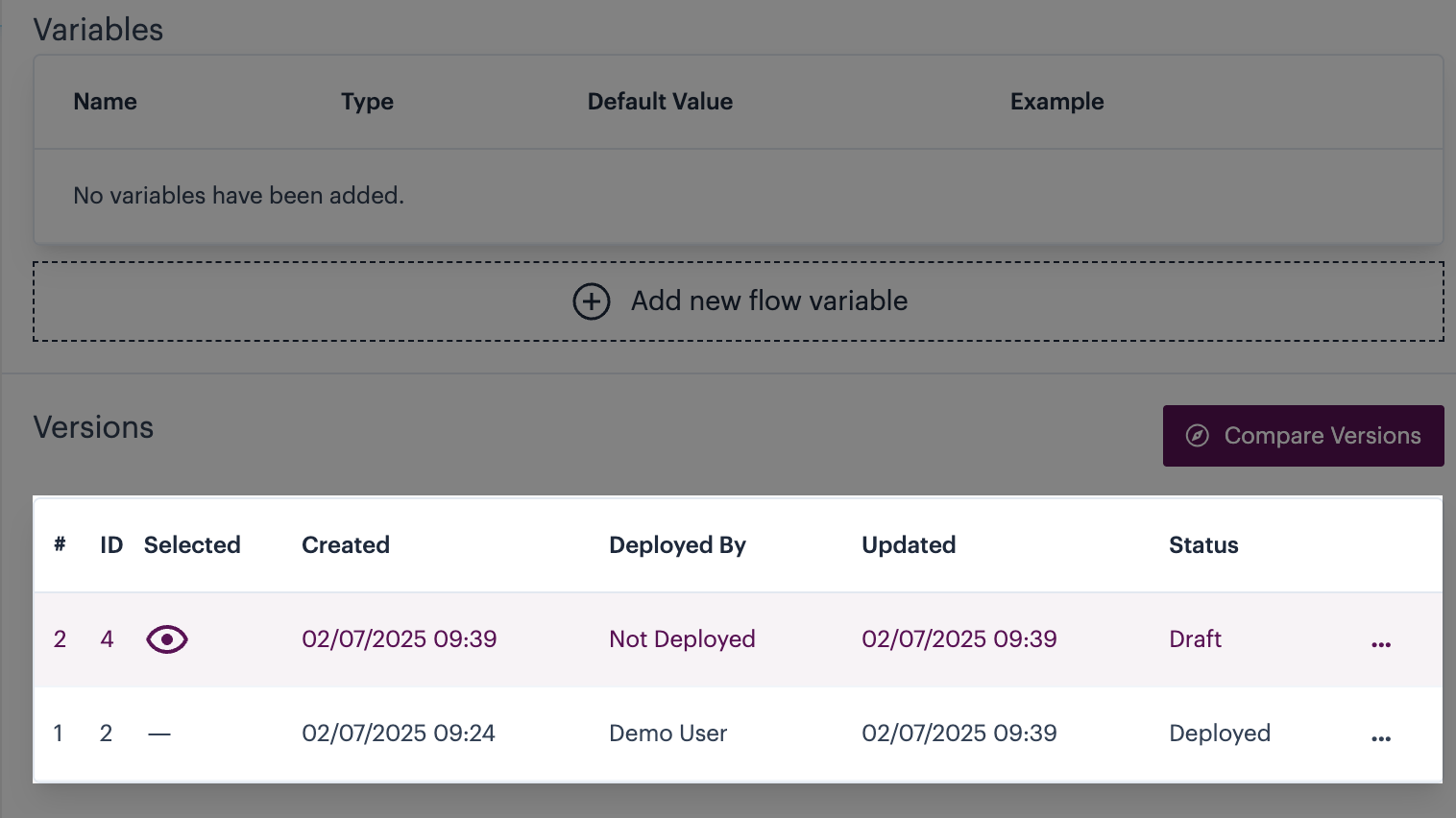
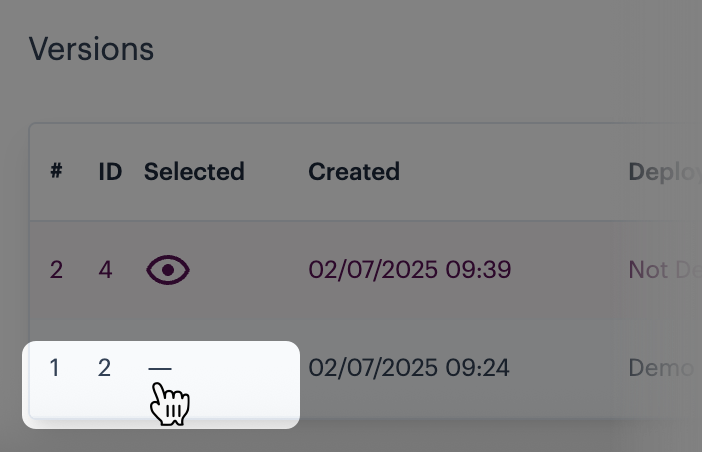
The version that's currently available to view and (if applicable) edit on the canvas is shown with an 'eye' icon in the selected column. To switch to a different version, click anywhere in the associated row - for example:
Understanding the process flow versions panel
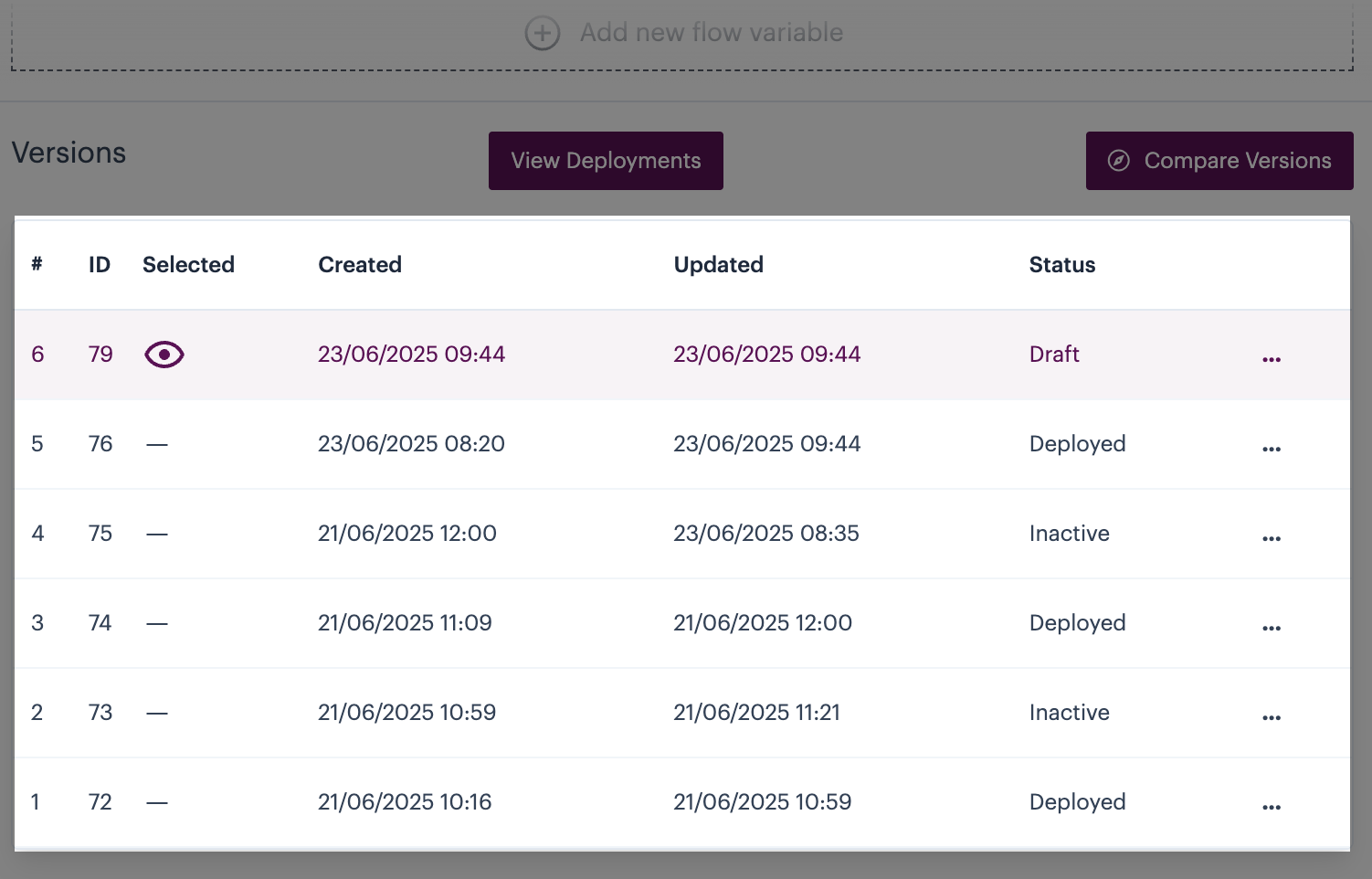
The versions panel is available in process flow settings - for example:
Version details are different if you use virtual environments - in this case, please refer to Reviewing version information for virtual environment process flows.
From here, you can see the following details for each version:
| Heading | Summary |
|---|---|
| # | The flow version number. The version number remains constant unless another version is deleted, in which case any remaining version numbers update accordingly. |
| ID | The unique identifier associated with a version. This identifier remains constant, even if the original version number changes as a consequence of another version being deleted. If you are using our API to work with virtual environments, you'll need this id to target the required flow version. |
| Selected | Indicates which version is currently displayed on the canvas. |
| Created | The date and time (UTC) this version was created. |
| Updated | The date and time (UTC) this version was updated. |
| Status | The current status of this version. Each new version of a process flow starts as a draft, and increments the version number. The version then progresses through its own lifecycle (where a draft can become deployed and a deployed version becomes inactive when superseded by another deployment.Note that flow versioning works a little differently if you use virtual environments. In this case, please refer to Understanding flow versioning for virtual environments. |
| ... | Access options to work with the selected version. |
Version options
The ellipsis associated with each version provides access to the following options (availability varies, depending on the version status):
| Option | Applicable from status... | Summary |
|---|---|---|
| Duplicate flow | draft, deployed, inactive | Copy the selected flow version to a new process flow. |
| Copy to draft | deployed, inactive | Overwrite the existing draft version with content from the selected flow version. |
| Upload to marktplace | deployed | Upload the selected version to your private marketplace (only applicable if the partner features bolt-on is enabled for your company profile). |
| Delete | inactive | Deletes the selected version entirely. |
Comments
0 comments
Please sign in to leave a comment.