
To view this content in our official product documentation, click here.
Description
ChannelEngine ensures product info and stock levels are synchronised across marketplaces - syncing product information, product data and stock information across channels.
API documentation
API documentation for ChannelEngine (used to build this connector) can be found via the link below:
{% embed url="https://support.channelengine.com/hc/en-us/articles/4409515268637-Merchant-API-before-you-start" %}
Swagger documentation is available by composing your own company-specific link (using your ChannelEngine tenant subdomain) as below:
{% code lineNumbers="true" %}
https://<tenant subdomain>.channelengine.net/api/swagger/index.htmlFor example:
{% code lineNumbers="true" %}
https://patchworks-dev.channelengine.net/api/swagger/index.htmlAuthentication
When adding connector instances for ChannelEngine, the following authentication methods are supported:
Token authentication
{% tabs %} {% tab title="Required credentials" %} When a user chooses to add a connector instance using token authentication, the credentials below are prompted:
| Credential | Required? | Notes |
|---|---|---|
Environment |
true | This is your ChannelEngine tenant subdomain. For example:patchworks-dev
|
Token |
true | This is the API key generated from the ChannelEngine dashboard. |
{% endtab %}
{% tab title="Obtaining credentials" %} Finding your environment
Step 1\ Log into the ChannelEngine dashboard.
Step 2\ Note the subdomain in the URL - this is your environment setting:

\ Finding your token
Step 1\ Log into the ChannelEngine dashboard.
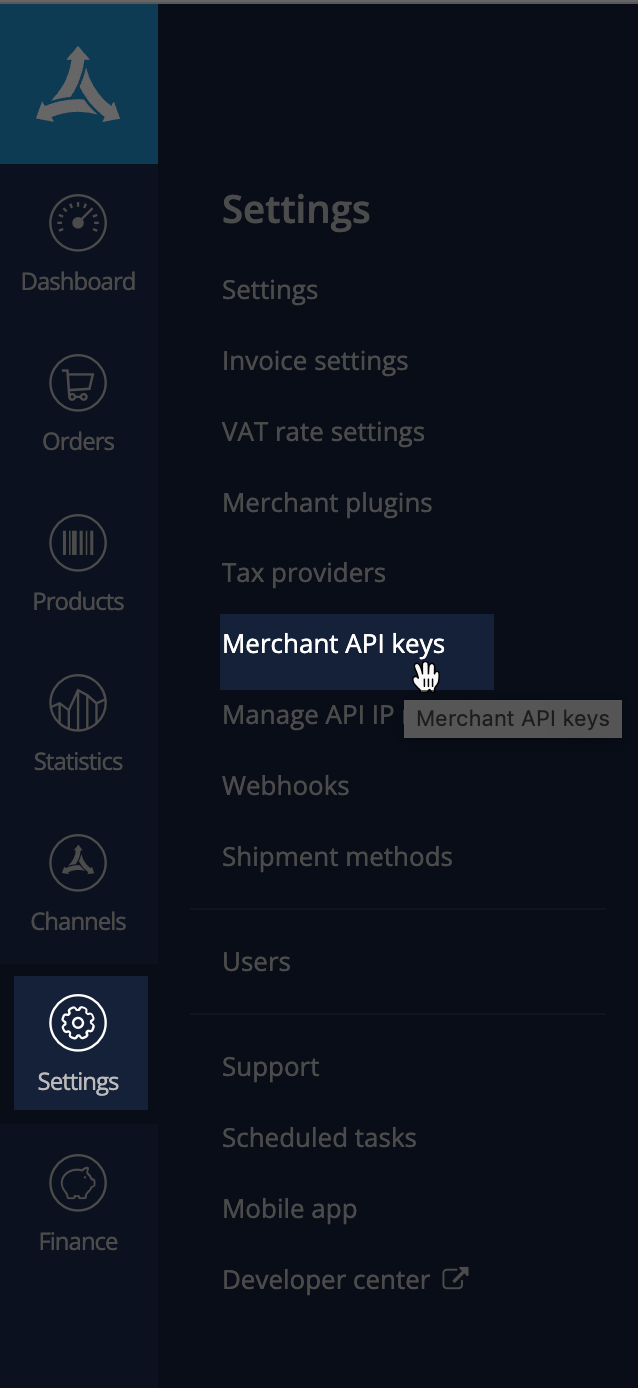
Step 2\ Select settings from the left-hand navigation bar, then merchant API settings:
Step 3\ Existing API keys are displayed:
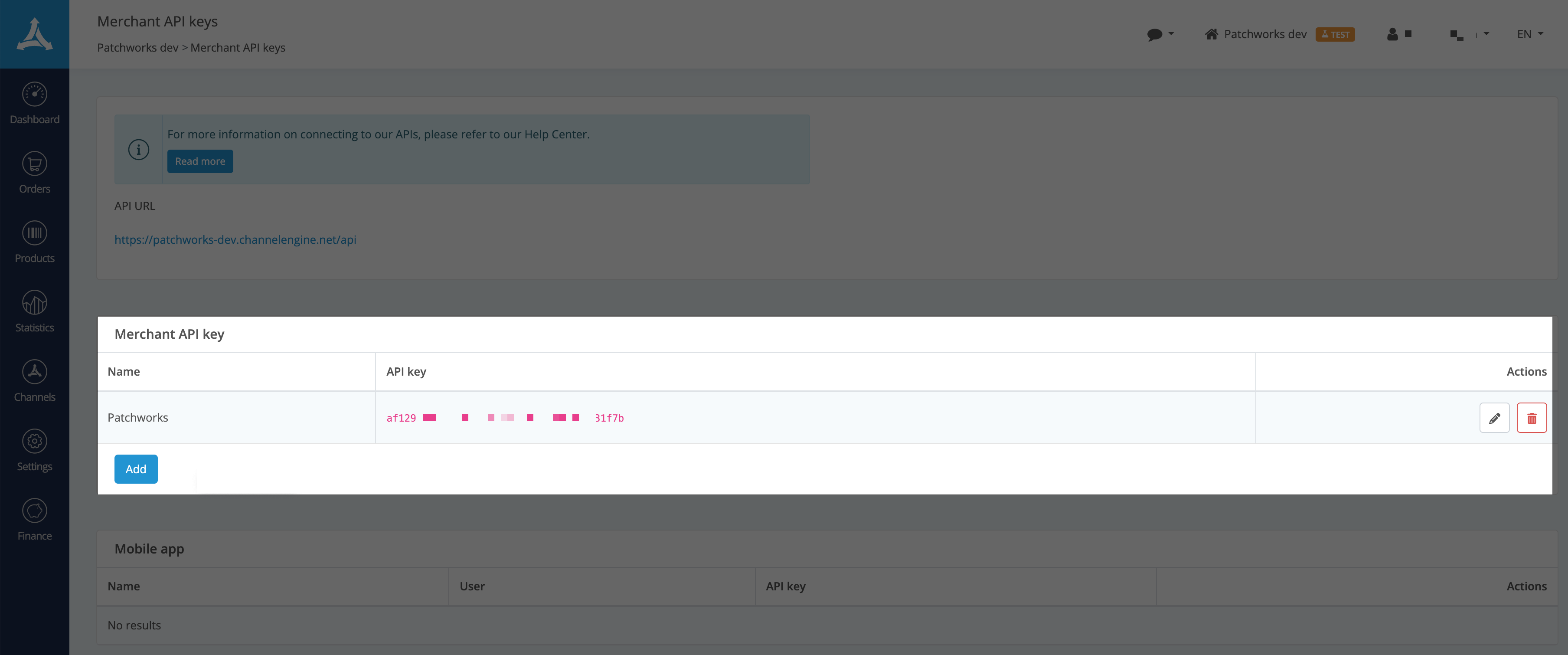
If necessary, you can add a new one for Patchworks.
{% endtab %} {% endtabs %}
Comments
0 comments
Please sign in to leave a comment.