
To view this content in our official product documentation, click here.
Introduction
In this stage, you will copy and rename the .env.example file (added during Stage 1), and then update it with your own Patchworks credentials
Pre-requisites
To complete this task, you must have access to an MCP client account. We are using Claude, as Claude Desktop is an easy starting point; however, other clients (e.g. Gemini and ChatGPT with MCP support) work in the same way.
You will also need an API key for your Patchworks account. Please refer to our API keys product documentation for information about obtaining API keys.
The steps
{% hint style="warning" %} The instructions below are for Claude, using Mac OS. You may need to adapt these if your setup varies. {% endhint %}
{% stepper %} {% step %} Prepare credentials
Ensure that your Patchworks API key is to hand, ready to copy/paste later in this task. {% endstep %}
{% step %} Prepare configuration content
Paste the following content into your preferred editor:
{% code lineNumbers="true" %}
{
  "mcpServers": {
    "patchworks": {
      "command": "/Users/yourname/.local/bin/uv",
      "args": [
        "--directory",
        "/Users/yourname/patchworks-mcp",
        "run",
        "python",
        "server.py"
      ],
      "env": {
        "PATCHWORKS_BASE_URL": "https://core.wearepatchworks.com/api/v1",
        "PATCHWORKS_TOKEN": "XXXXXXXXXXXXXXXX",
        "PATCHWORKS_TIMEOUT_SECONDS": "20"
      }
    }
  }
}
* The `command` element is the path to your `uv` binary (run `which uv` from a terminal window if you need to check this). * The `args` element tells the MCP client (in this case, Claude) how to start the server. * The `env` element is the config passed into your MCP server.
Make the following changes:
| Line # | Required change |
|---|---|
| 4 | Replace yourname with your username associated with your computer's home directory - e.g. janesmith. |
| 7 | Replace yourname with your username associated with your computer's home directory - e.g. janesmith. |
| 14 | Replace XXXXXXXXXXXXXXXX with your Patchworks API key (leave the quotes in place). |
{% endstep %}
{% step %} Create a config file
In a terminal window, run the following command:
nano $HOME/Library/Application\ Support/Claude/claude_desktop_config.json{% endstep %}
{% step %} Add your content to the config file
Paste all content from step 2, above. {% endstep %}
{% step %} Exit and save
Press CTRL+X to exit. When prompted, enter Y to save changes, then press Enter to confirm the filename. {% endstep %}
{% step %} Relaunch your MCP client
If running, quit and restart your MCP client (in this case, Claude Desktop). {% endstep %}
{% step %} Test the connection
Open your MCP client and type the following prompt:
“Get a list of my Flows”Claude prompts you to confirm the use of this integration - for example:
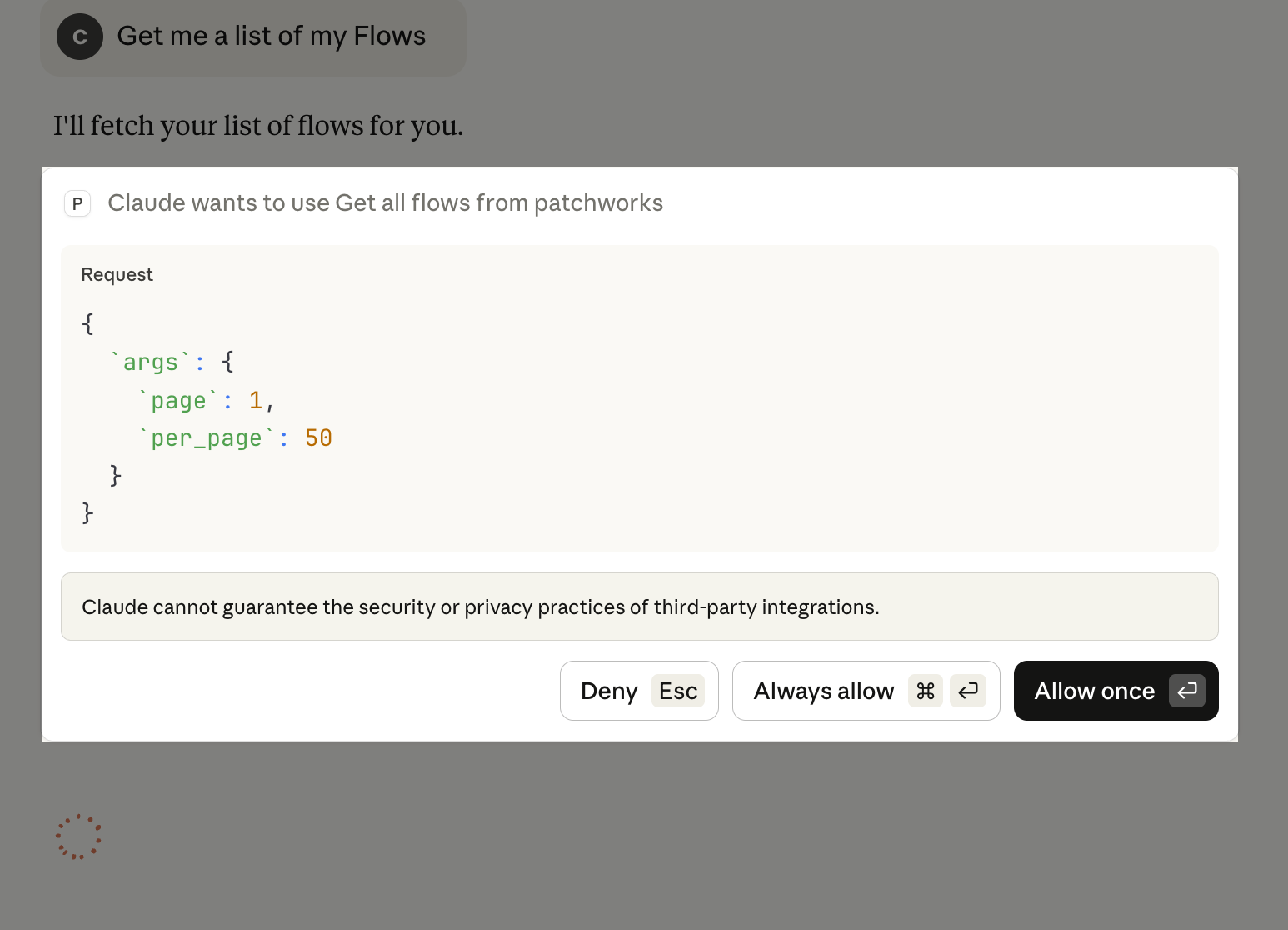
You can allow once or always allow, as preferred. A list of process flows for the account associated with your API key is returned. {% endstep %} {% endstepper %}
Comments
0 comments
Please sign in to leave a comment.