
To view this content in our official product documentation, click here.
Introduction
If a blueprint is no longer required, you can remove it entirely. Deleting a blueprint (as opposed to deleting a specific version of a blueprint) means that it's no longer displayed in your private marketplace - and therefore no longer available for your managed/'child' companies to install.
Need to know
- Deleting a blueprint does not affect any existing installations.
The steps
{% stepper %} {% step %} Log in to your own company profile
Log in to the dashboard and (if you're managing multiple company profiles) ensure that you've switched to your own profile. {% endstep %}
{% step %} Access private blueprints
Select marketplace from the left-hand navigation menu, then select blueprints and private tabs. Here you will see any blueprints that have been built by users associated with your company profile. {% endstep %}
{% step %} Access the manifest for the required blueprint
Click the blueprint tile that you want to manage. For example:

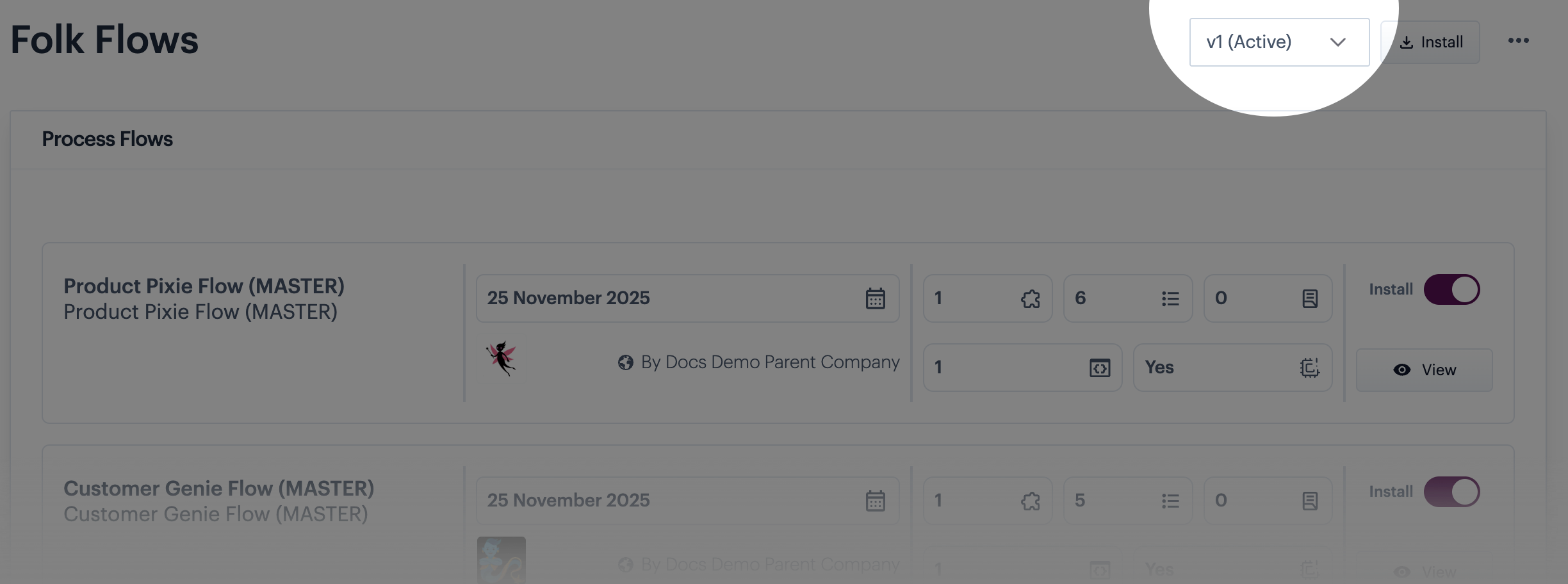
The blueprint manifest is displayed with the currently active version is displayed by default - for example:
{% endstep %}
{% step %} Select the delete option
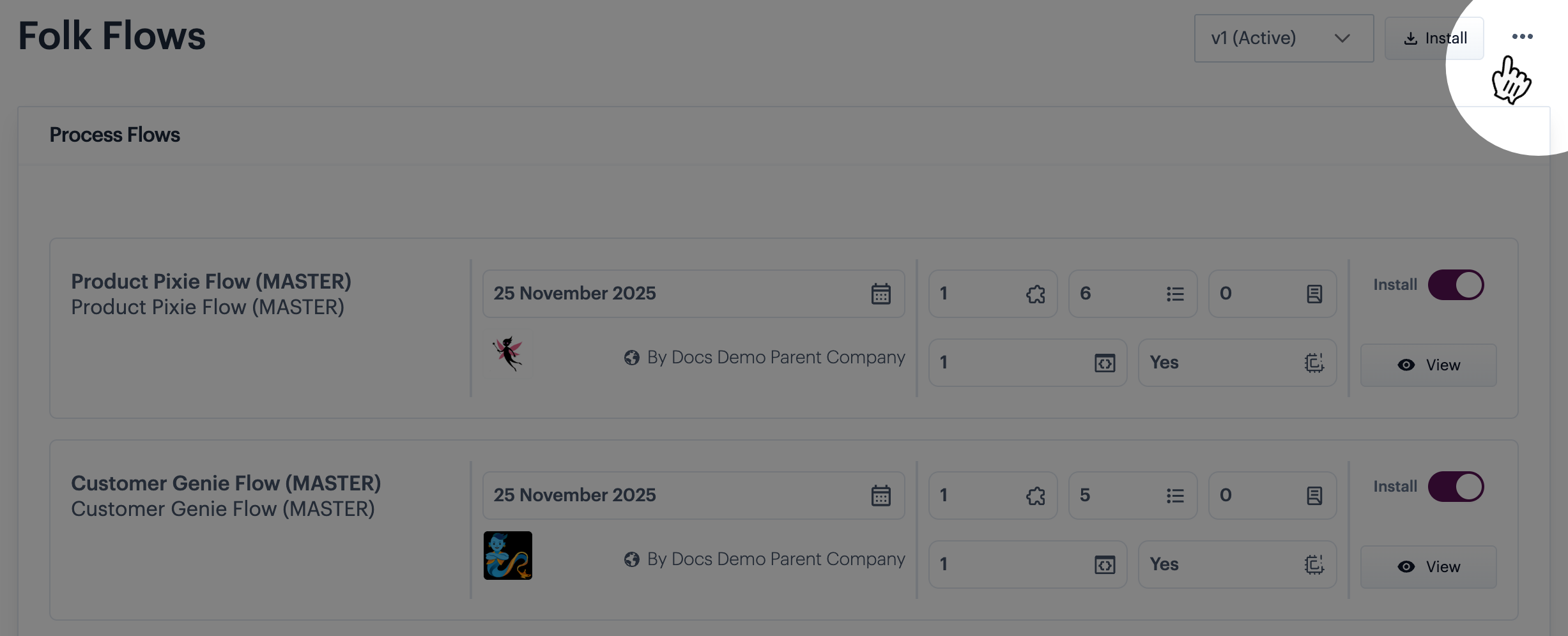
Click the ellipsis icon at the top of the page:
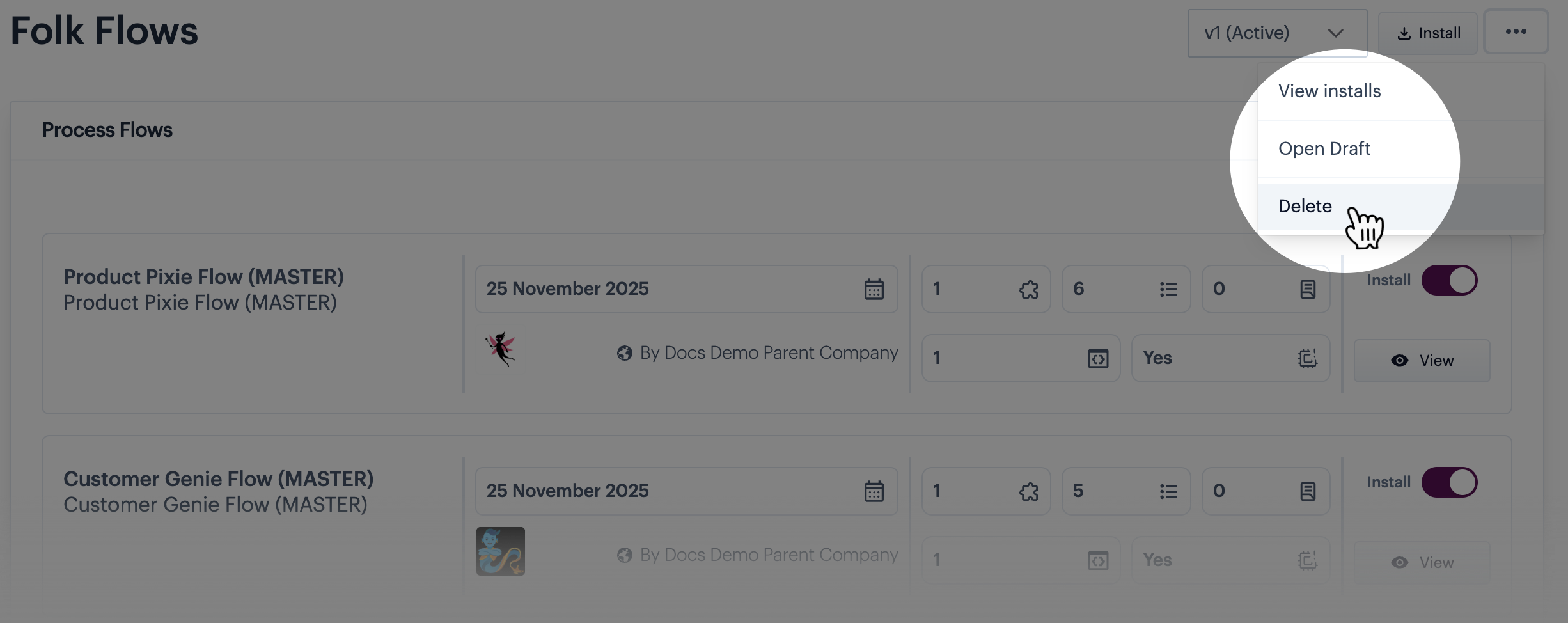
Then select the delete option:
{% endstep %}
{% step %} Confirm this action
When prompted, confirm that you want to proceed with this action by entering the name of this blueprint. The required name is shown as placeholder text - for example:
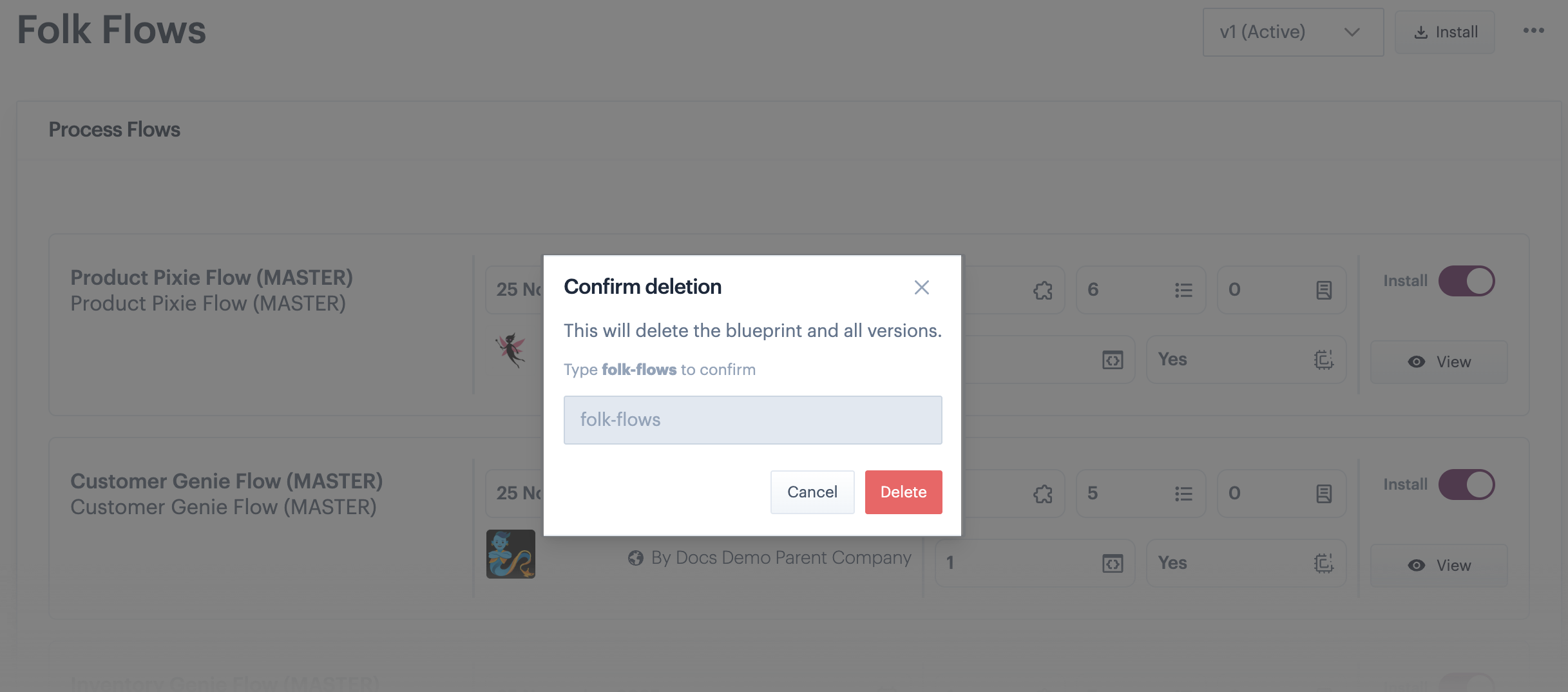
Overtype this with the name displayed, then click the delete button. For example:
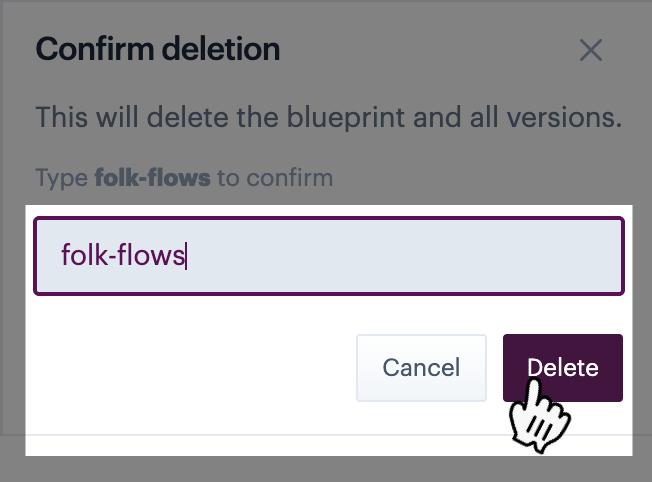
{% endstep %} {% endstepper %}
Comments
0 comments
Please sign in to leave a comment.