
To view this content in our official product documentation, click here.
Introduction
If you have your own set of data values that you want to cross-reference, you can add your own cross-reference lookup. Once added, you can use it in field mapping transformations.
If required, cross-reference lookups can also be updated via the Patchworks API. For more information please see our Cross-reference lookup API section.
The steps
Step 1\ Log into the Patchworks dashboard, then select process flows ~ cross-reference lookups from the left-hand navigation bar.
Step 2\ Click the create cross-reference lookup button:

Step 3\ Enter basic details for this lookup:

| Field | Summary |
|---|---|
| Name | Enter a name by which this lookup will be identified throughout Patchworks. Special characters are allowed. |
| Description | Provide a bit more detail to help users understand what this lookup includes. Special characters are allowed. |
| Default | Set a fallback value to be used when this lookup is used for field transformations and the associated field has a value that can't be found in the set of values for this lookup. |
Step 4\ Click the create button to confirm these details. The new lookup is created and you're ready to add your required values.
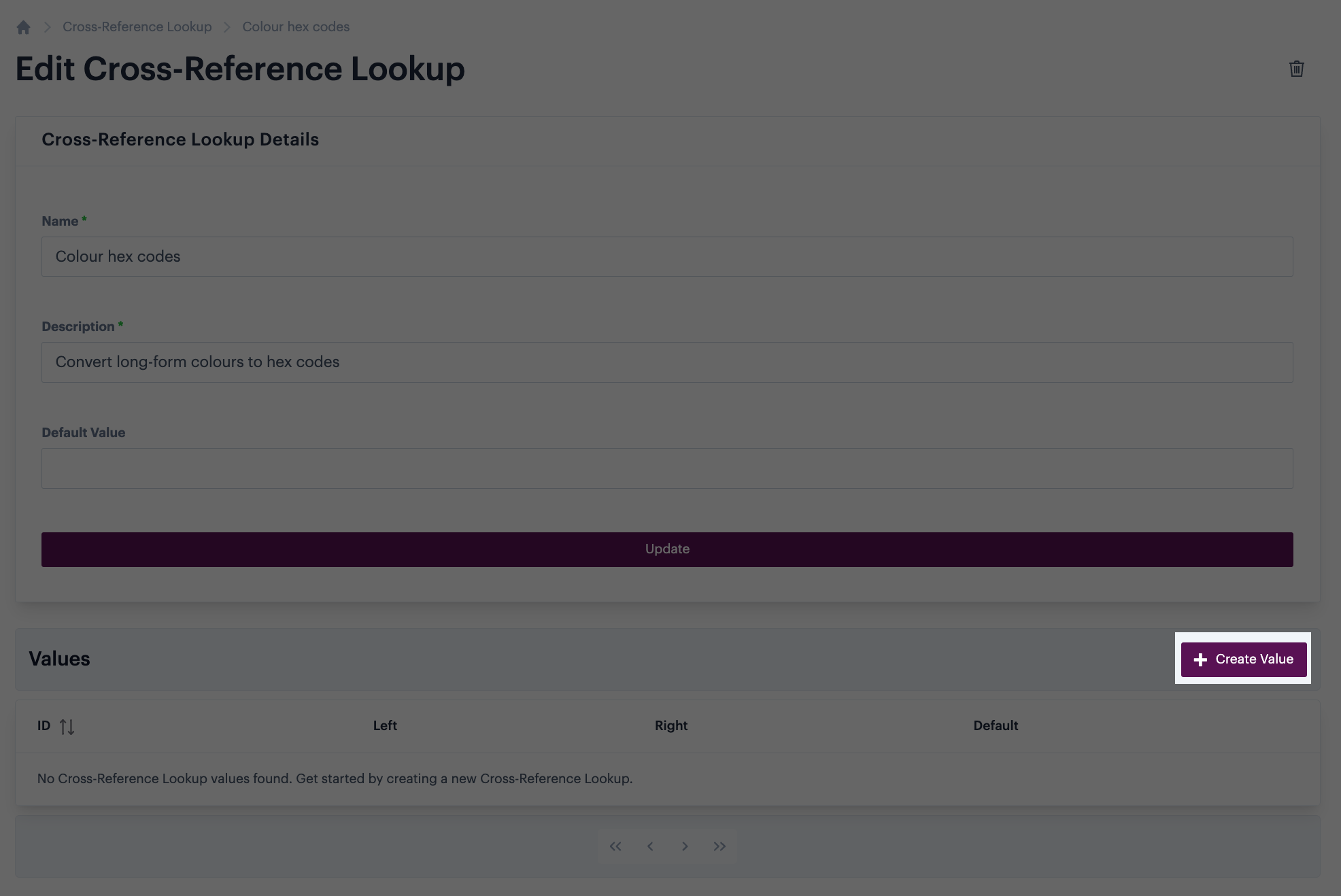
Step 5\ Click the create value button:
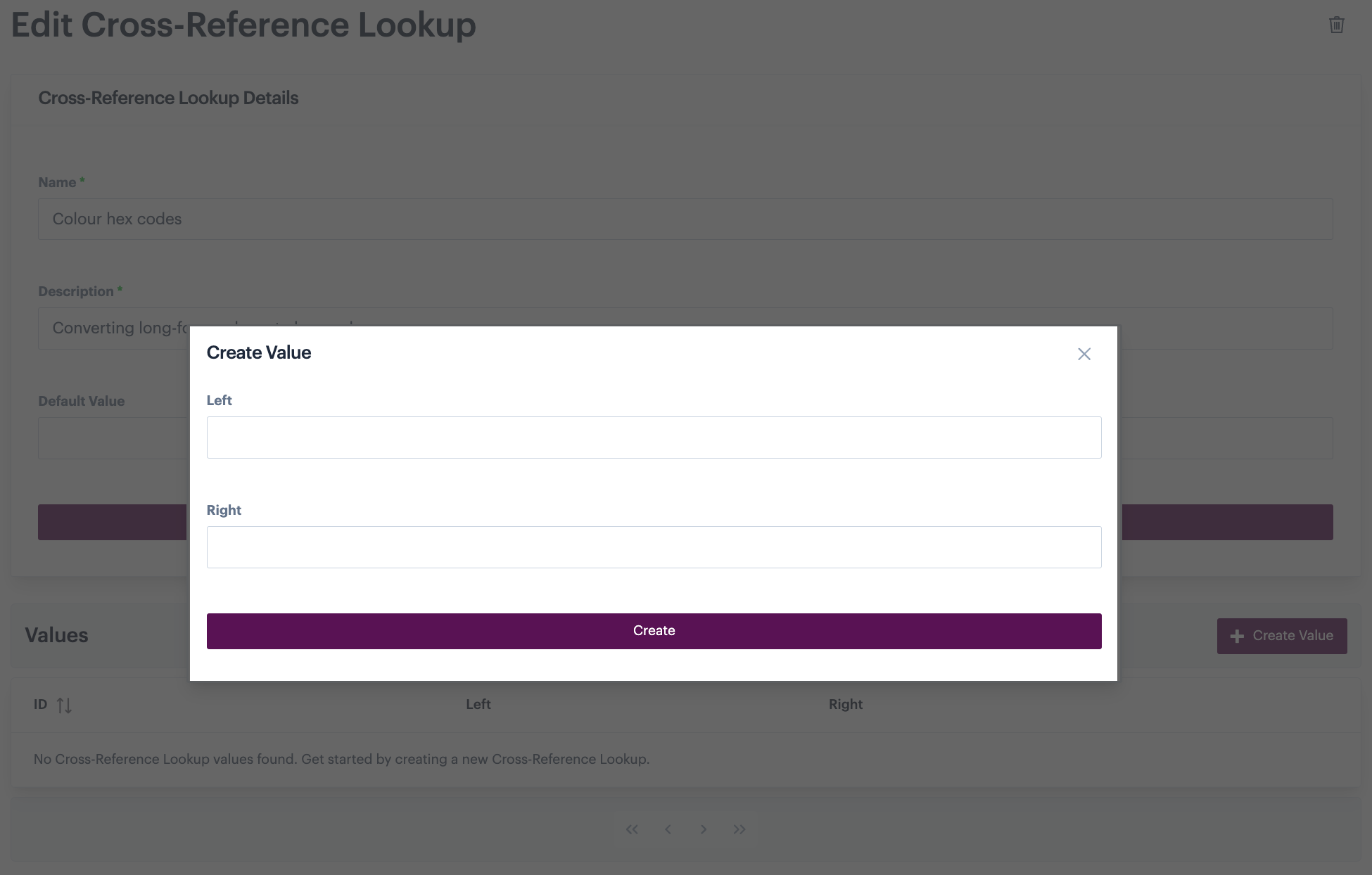
Step 6\ Enter details for your first value:
| Field | Summary |
|---|---|
| Left | Enter the 'left side' of the value mapping - i.e. the value to be converted. |
| Right | Enter the 'right side' of the value mapping - i.e. the converted value. |
You can include special characters when defining lookup values. Values do NOT need to be unique.
Step 7\ Click the create button to save this entry.
Step 8\ Add more values as needed.
Comments
0 comments
Please sign in to leave a comment.