
To view this content in our official product documentation, click here.
Introduction
Typically, process flows run automatically, according to trigger shape settings. However, there may be times when you want to run a flow immediately - for example, if you're testing a new flow, or troubleshooting a sync issue.
When you run a process flow manually, you'll see each shape is animated when it's reached, and real-time logs are displayed in a side panel.
{% hint style="warning" %}
Before running a process flow manually, ensure you won't duplicate data - or cause duplication next time the process flow runs according to trigger settings.
{% endhint %}
Need to know
- Your subscription tier determines the number of process flow runs that can be started per minute - please see Core subscription tiers for information.
- When working with
draftprocess flows, you cannot edit shapes while the flow is being run manually.
The steps
 Show me
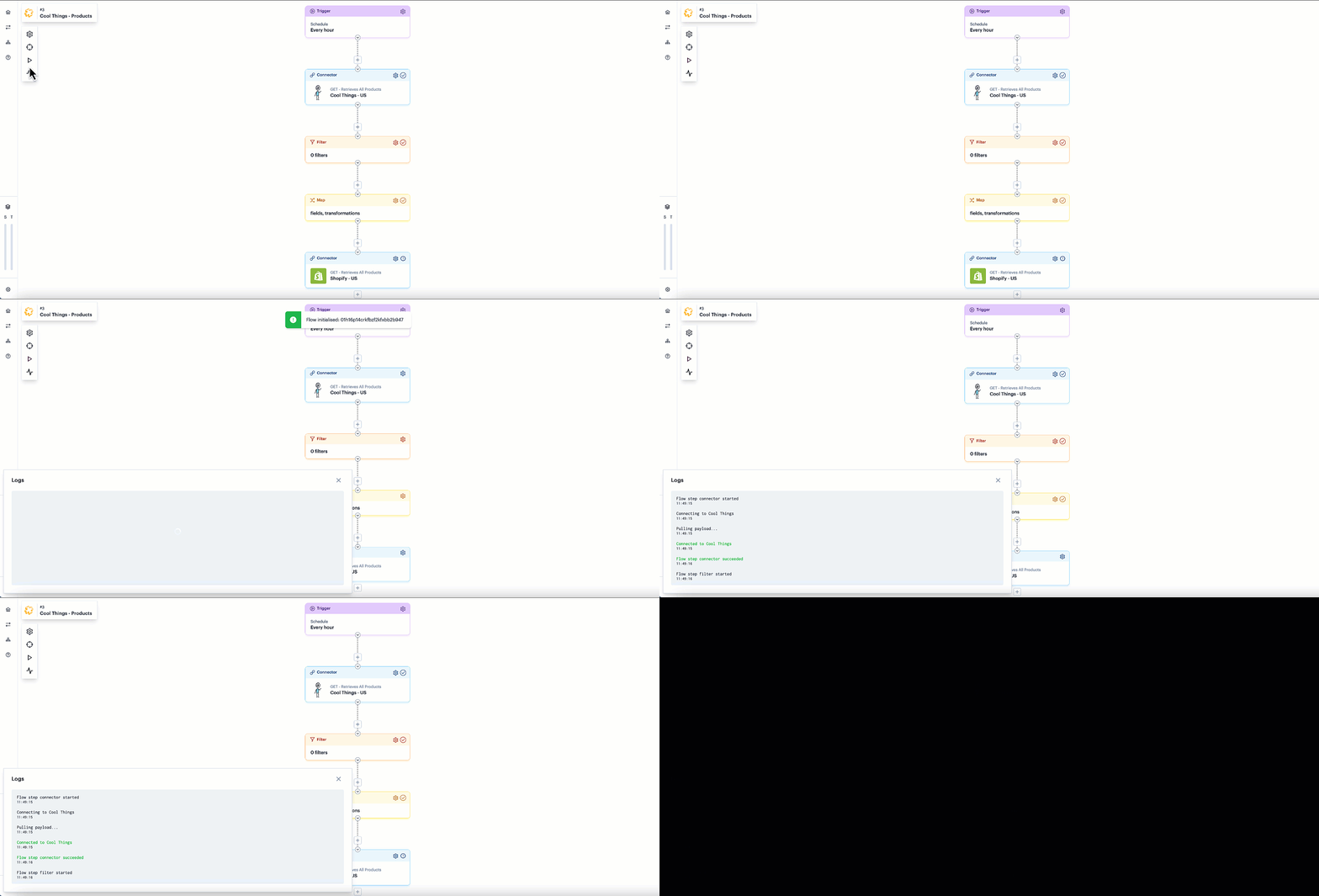
To run a process flow manually, follow the steps below.
Step 1\ Access the process flow that you want to run.
Step 2\ Click the 'play' icon to initialise the process flow:

Step 3\ The process flow runs. As it runs, you'll see that each shape animates as it's reached, and real-time logs are displayed - for example:

Comments
0 comments
Please sign in to leave a comment.